

Changelog
Claude MCP Connector, Three-Step Work Orders, Private Saved Views & Panel Conflicts
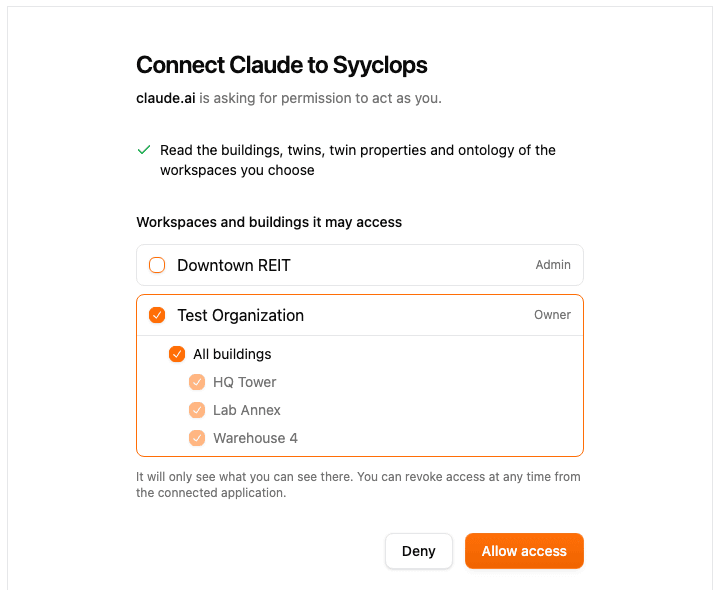
Connect Claude to Syyclops
Syyclops is now available as a custom MCP connector, so you can connect Claude (claude.ai, Claude Desktop, or Claude Code) and ask about your buildings, twins, twin properties, and ontology inside a conversation.
Claude acts as you and sees only what you can see. The consent screen asks which workspaces to grant, and each workspace can be narrowed to specific buildings rather than all of them.
Access is revocable at any time from the connected application.
Work Orders in Three Steps
Creating a work order is now a three-step flow: What & where, Who & when, and Files, with each step reporting its own status in the header.
Only a name is required, so you can create the work order from the first step and fill in the rest later, or continue to details and finish it in one pass.
The Work Orders page also gained a building picker in its header, so you can switch buildings without leaving the page.
Saved Views, Private or Shared
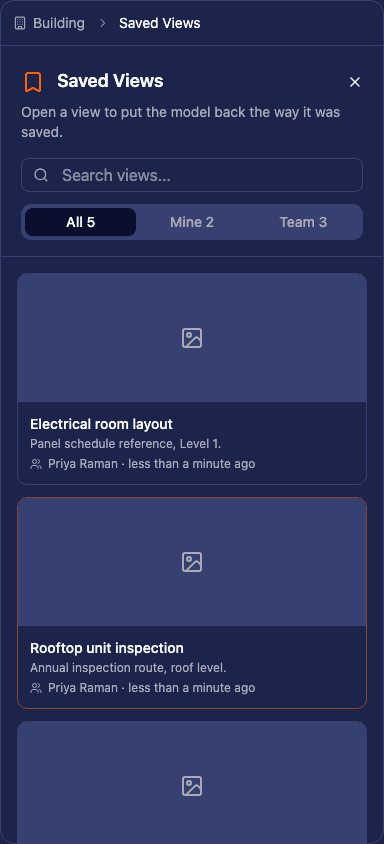
A saved 3D view now belongs to whoever created it, and Saved Views separates Mine from Team, so a working view you set up for yourself no longer clutters everyone else's list.
Card previews gained a 3D toggle and a duration control.
Panel Schedule Conflicts and Pole Usage
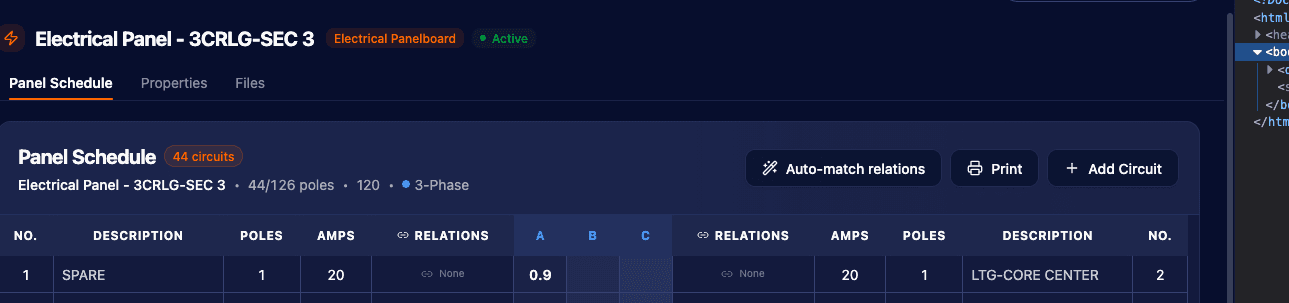
The panel schedule shows pole usage across the panel and flags circuit placements that conflict, so an overlapping or over-capacity placement is visible before it is saved.
The chat agent can also propose panel schedule relations, suggesting which circuits feed which equipment.
Manufacturer Is a Linked Record
Manufacturer is no longer free text on an equipment twin. Choosing one links or creates a company record, so the same manufacturer spelled three ways stops becoming three manufacturers.
Equipment also gained motor nameplate properties, and Custom ID Mappings can be batched across destinations.
Redesigned Mobile Home Screen
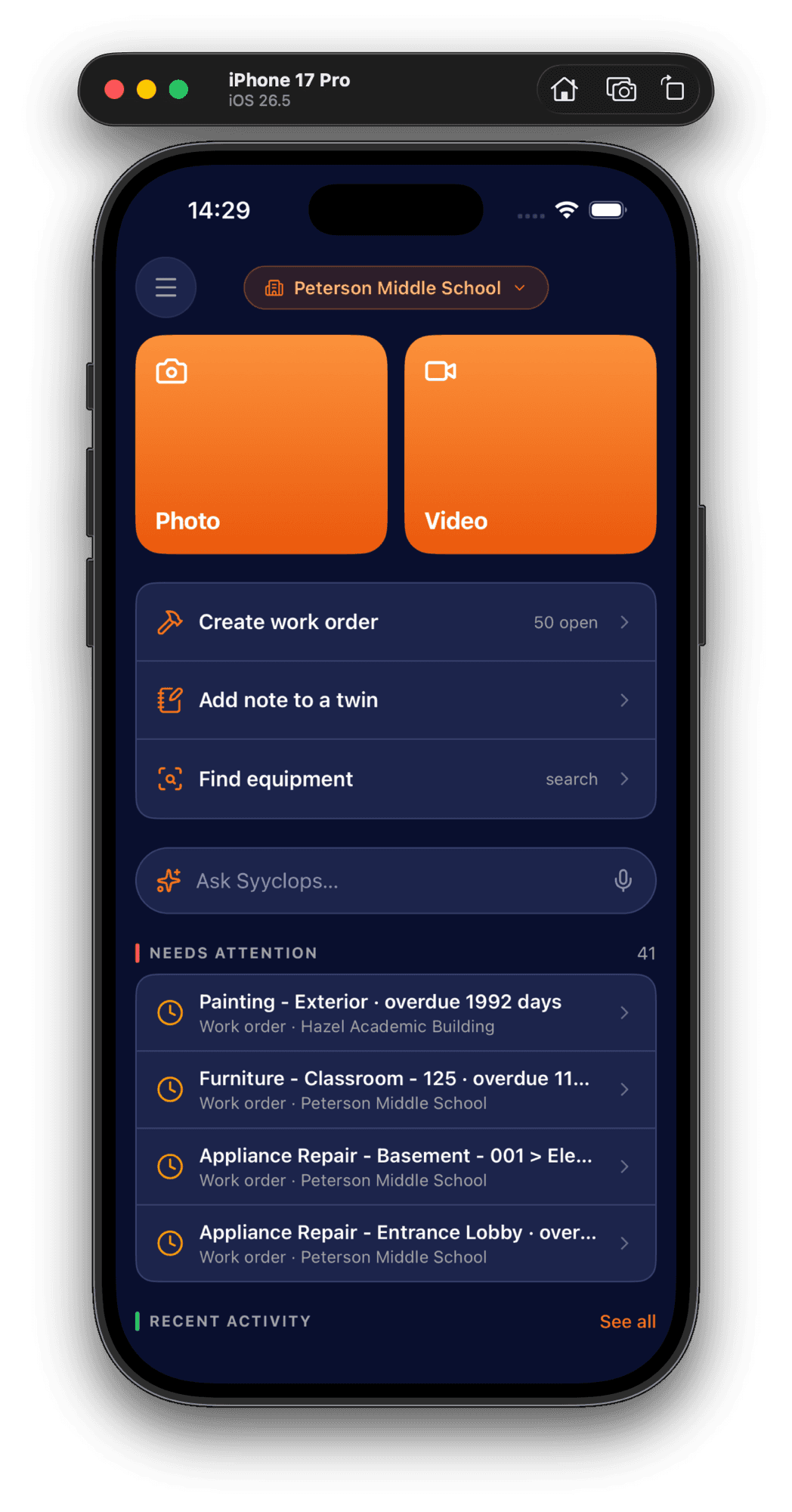
The mobile home screen is built around capture, with Photo and Video tiles at the top and quick actions beneath them.
You can swipe between photos, the new chat button is back, and search reports progress while it runs.
Controls Picks Its Building From the Header
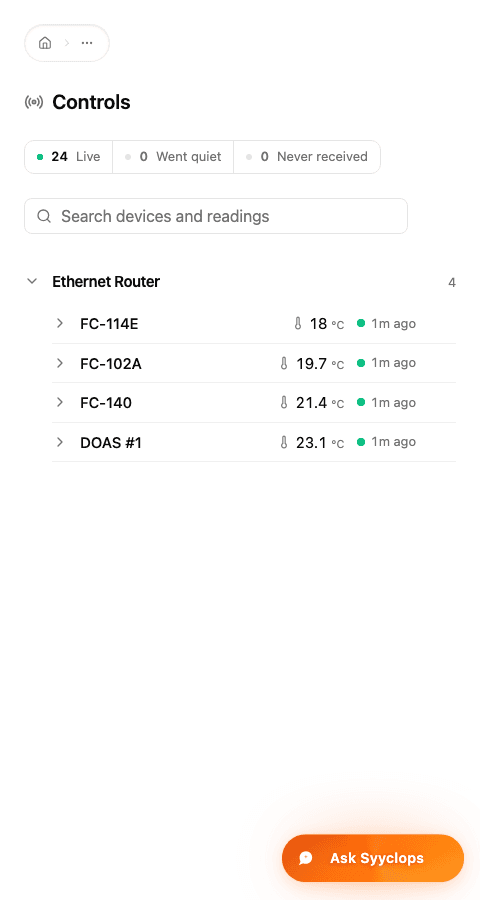
Controls takes its building from the page header, matching Work Orders, so the building you are looking at is stated in one place on both pages.
A sensor graph can now be opened into a detail view.
Also in This Release
The AI features run on a newer Claude model.
Chat-generated documents get their own category, and organizations have URL slugs, so a link carries the organization name rather than an id.
Data Lineage, Spreadsheet Import, Controls Dashboard & Discipline Browsers
Every Value Traces Back to Its Run
Every write into the data lake is attributed to the run, node, and provider that produced it, and the pipeline state behind a run is frozen alongside it.
That makes a value walkable backwards: from a twin property, to the run that wrote it, to the graph that run executed, to the table as it stood at any earlier version.
Where several providers describe the same property, one value is elected for display and the rest remain visible as layers, each named with its source. A property edited by hand names the person who changed it.
Import a Spreadsheet
Pipelines can take a spreadsheet as a source. Choose the header row, skip the rows above it, and preview what will be read before the pipeline runs.
The preview row count persists between visits and can be set to unlimited.
Controls Dashboard
A new Controls dashboard lists what is actually sending telemetry, with each device's latest reading and when it was last seen.
Streaming pipelines report who is sending through them and where the flow stops.
Electrical, Plumbing, and HVAC Browsers
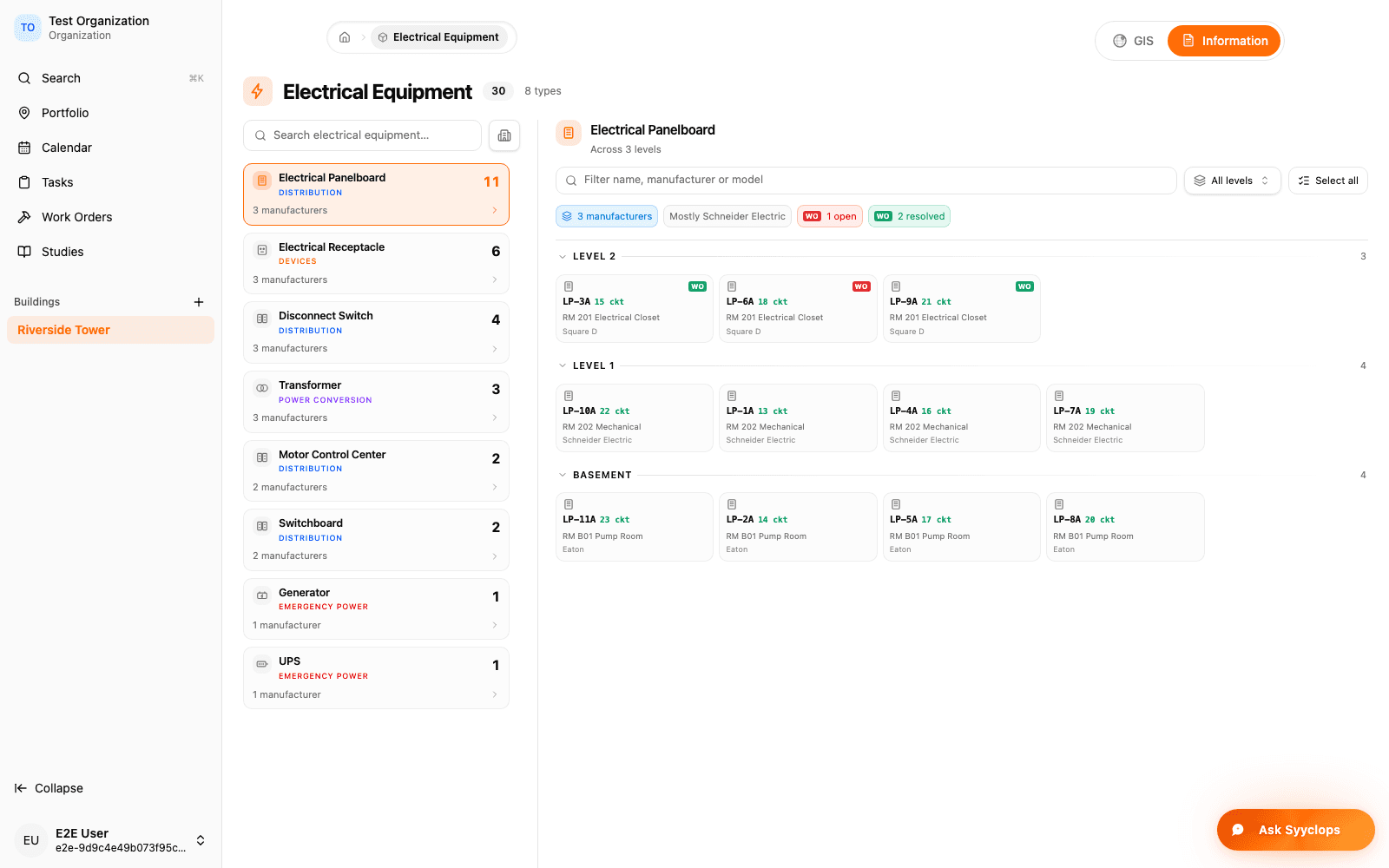
Equipment now has discipline browsers. The electrical browser groups panelboards by level with circuit counts, and plumbing and HVAC have type browsers of their own.
An All rooms view lists every room in the building in one place.
Circuits Matched From the Load Label
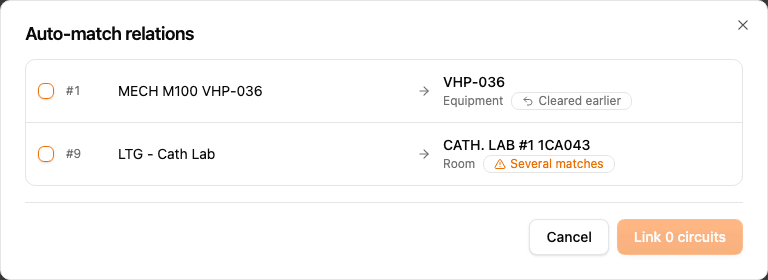
Panel schedule circuits can be matched to the equipment they feed automatically, proposed from the load label, with ambiguous matches called out rather than guessed.
Circuit placements that overlap or exceed the panel are refused.
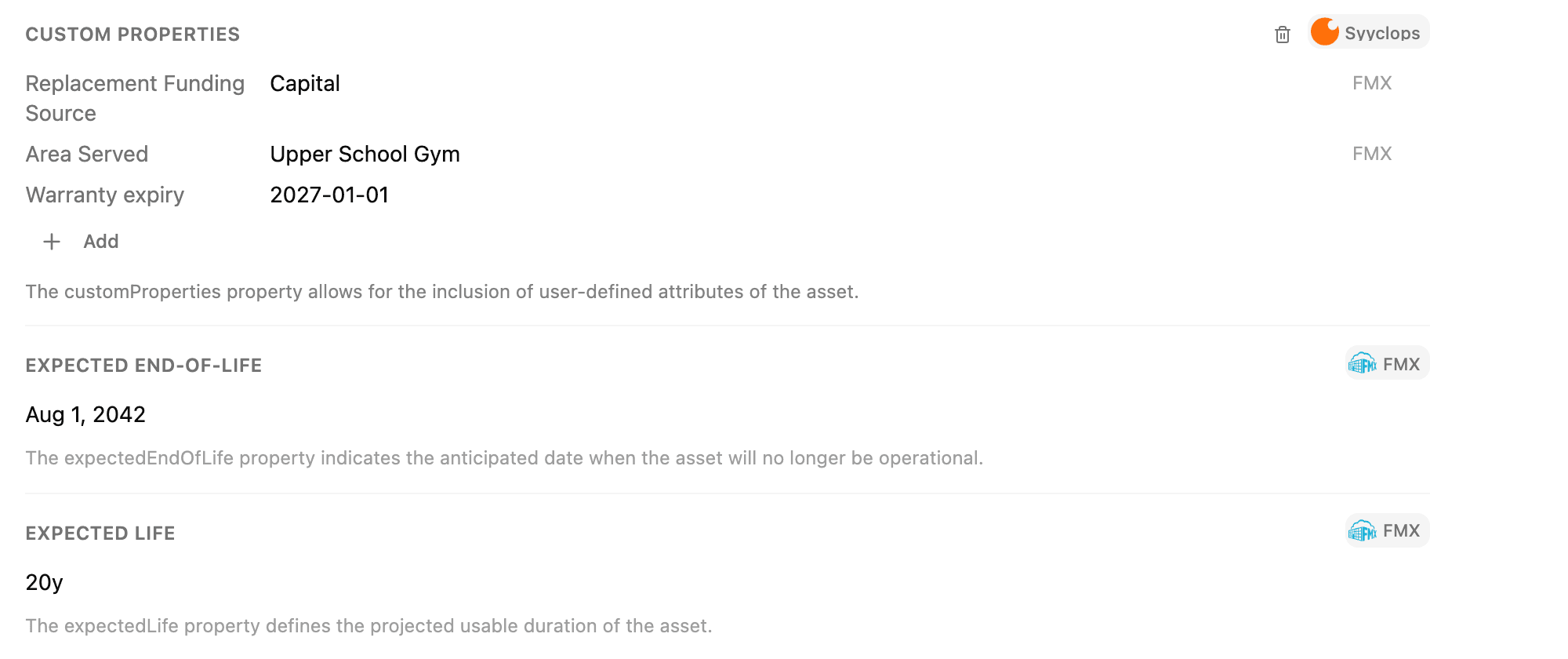
Custom Properties Carry Their Source
Adding a custom property asks for a name and a value together, and each property is tagged with the source it came from.
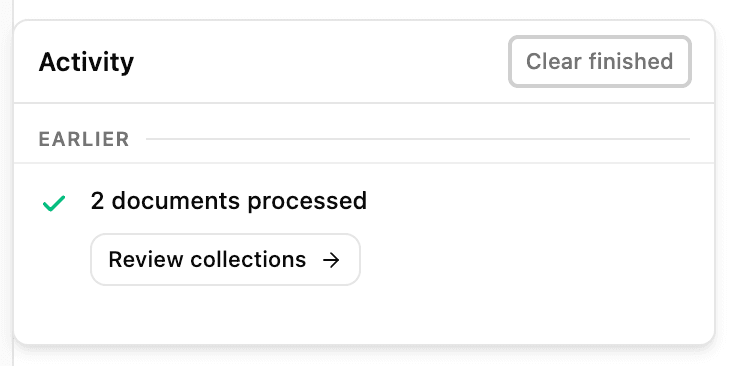
One Activity Center for Background Work
Imports, runs, and deletions report into a single activity center, with follow-up actions where there is something to do next.
A bug can be reported from the sidebar and triaged in the admin console.
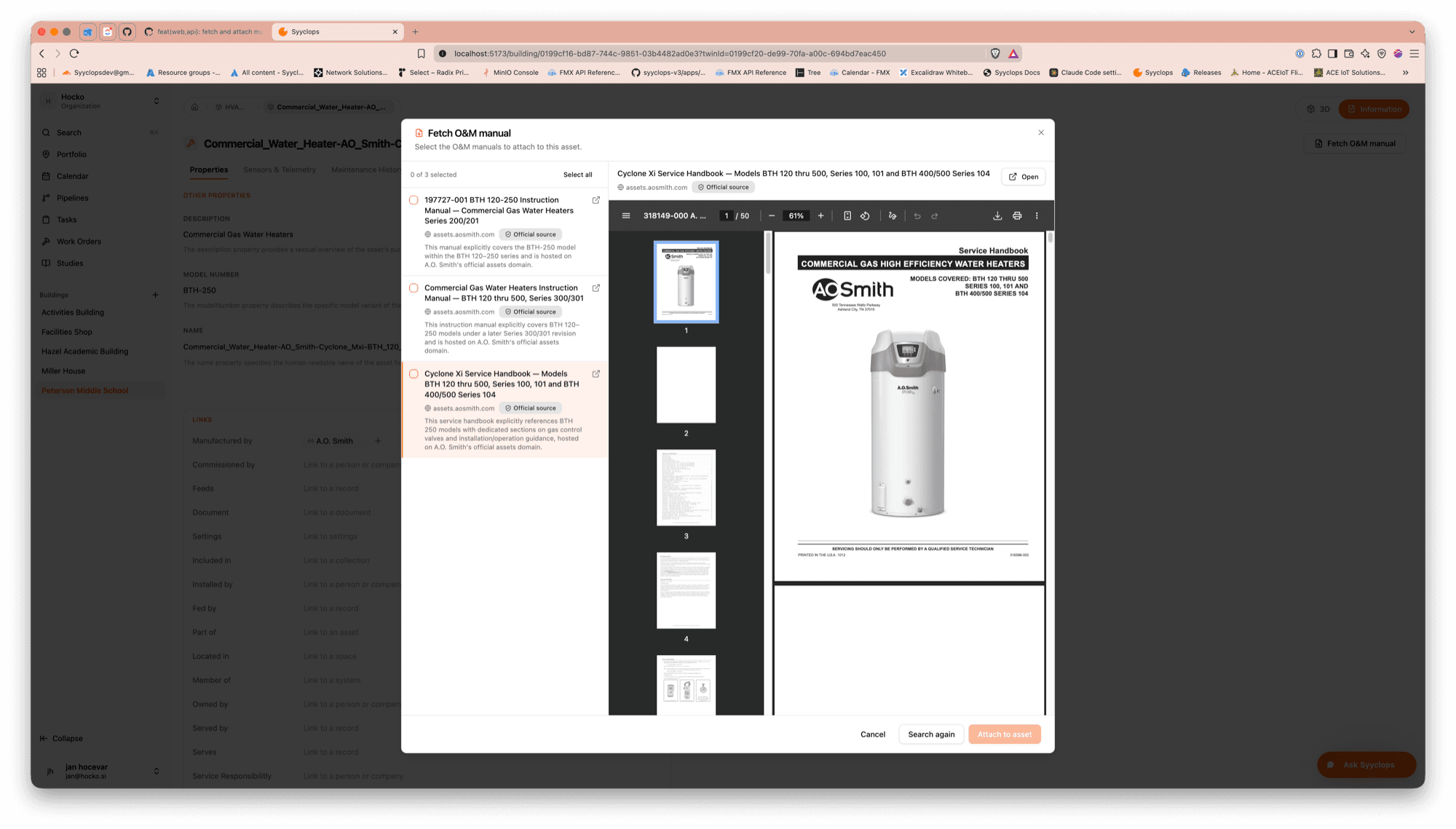
O&M Manuals, Several at Once
The O&M manual search returns several candidates you can preview inline as PDFs and attach together, and it runs as a job you can poll rather than a request you wait on.
Twin files can be archived, and image files show thumbnails in the file list.
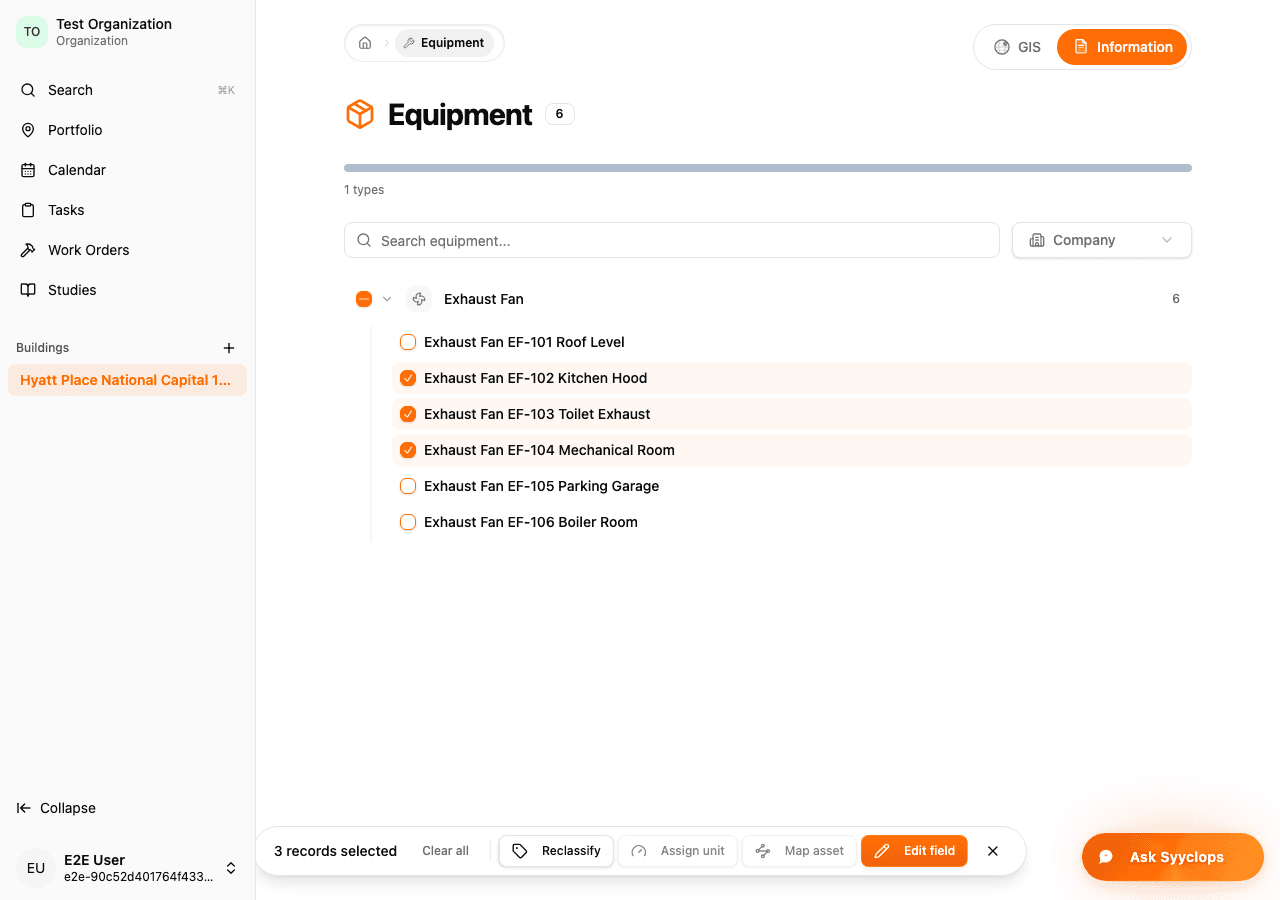
Saved Views and Bulk Selection
A 3D model view can be stored and reopened from Saved Views.
The bulk selection bar is docked beside the equipment list rather than floating over it, and filtered types are highlighted and named on hover.
Cross-Organization Pipeline Merge
A pipeline graph can be merged across organizations from the admin console: review the change, read the batch apply as a diff graph, then merge.
Admin pipelines can be filtered by organization and sorted.
GIS
The organizations list is now a GIS map, the GIS toolset understands location-filtered queries, and the view caps at four open sources.
Study Costs, Smarter O&M Manual Search & Mobile Hierarchy
Studies Report What They Cost
A study can be deleted, and its document history reports the AI usage and cost it accrued.
O&M Manual Search Checks Your Uploads First
Fetching an O&M manual searches the documents already uploaded to the building before going out to the web.
An in-flight search can be cancelled, and the fetch button starts a new one afterwards.
Viewer
The selected twin's 3D badge has a close button, so you can dismiss it without changing the selection.
Mobile
Mobile gained the organization hierarchy and a last crash report, alongside fixes for a fullscreen photo crash and for photo, video, and work order handling.
Security
Work order attachments are authorization-checked, so an attachment is reachable only by someone entitled to the work order it belongs to.
BIM Interface Classification, Bulk Room Moves, Document Thumbnails & GIS Data
BIM Interface Classification
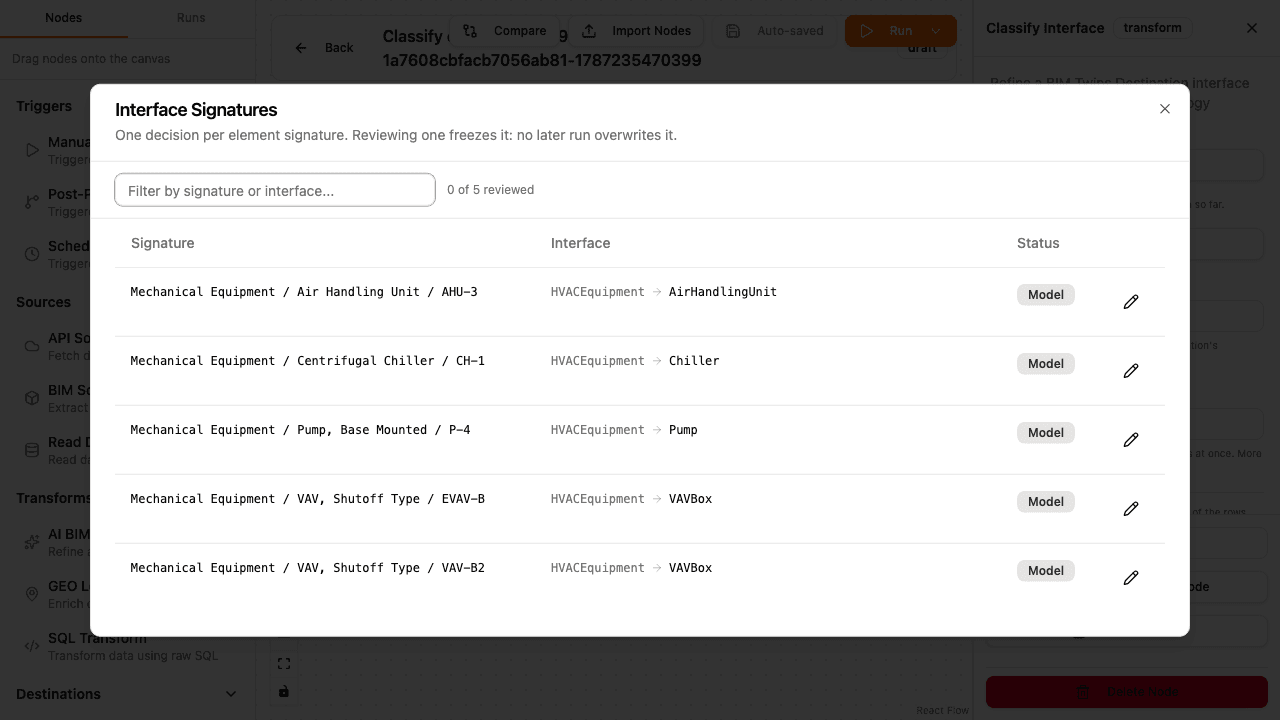
BIM elements are classified into finer DTDL interfaces, and the interface refinements a pipeline sends are applied to the model it produced.
Classifications are reviewed before they stick: approve what is right, then freeze the result so later runs do not undo it.
Move Rooms Between Levels in Bulk
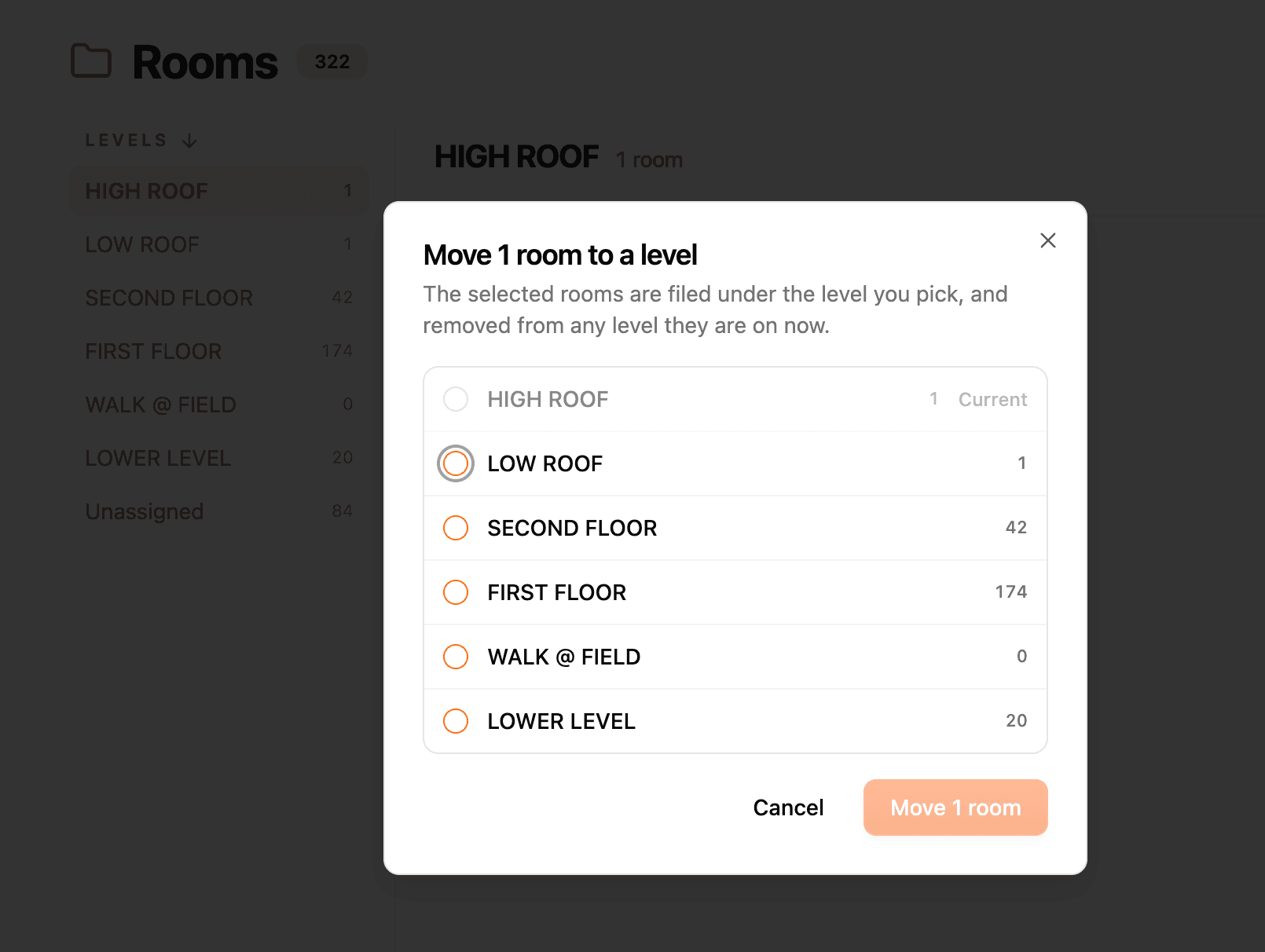
Rooms sitting on the wrong level can be selected on the Rooms screen and moved together, instead of one at a time.
Only unassigned rooms can be assigned to a level, so an existing assignment is not overwritten by accident.
GIS Map Data
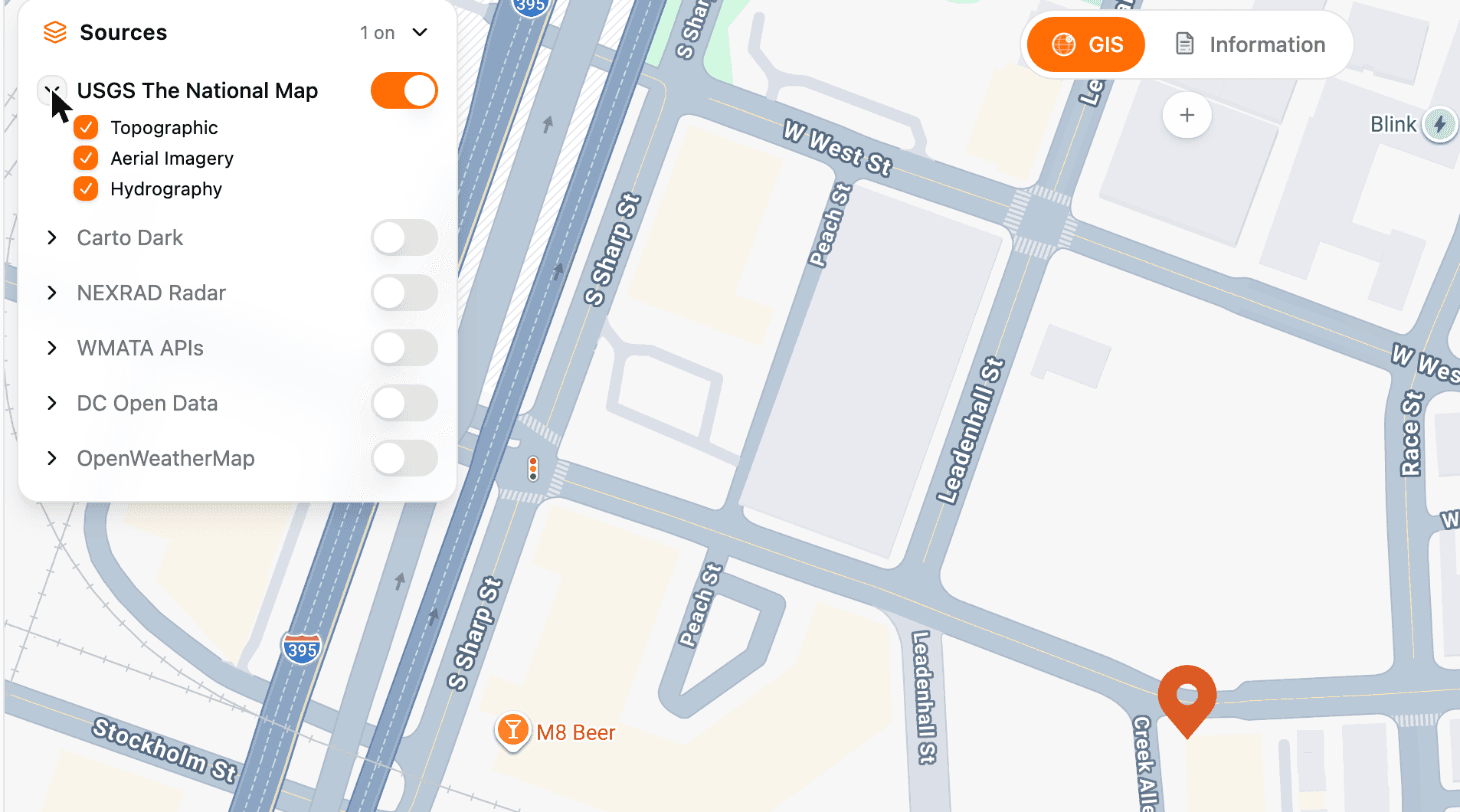
Building locations load through the GIS layer, so a portfolio can be read on a map rather than as a list.
Document Thumbnails
Document cards show an image thumbnail, so a drawing or a photo is recognisable in the list without opening it.
Panelboard Schedule Indicator
A panelboard says whether its schedule has been filled in, so partially configured panels are visible at a glance.
Twins Review Queue and Work Orders
Twins waiting on review are collected into a queue, and work orders suggest the asset they are about, for both equipment and rooms.
Building fixtures are now called architectural components.
Viewer and Rooms
The section box persists between visits, and ghost opacity and the room selection bar were reworked.
The room envelope tab fits the viewport, with measurements beside the plan.
Building Overview Redesign, 3D Type Filter & Utility Bill Payments
Redesigned Building Overview
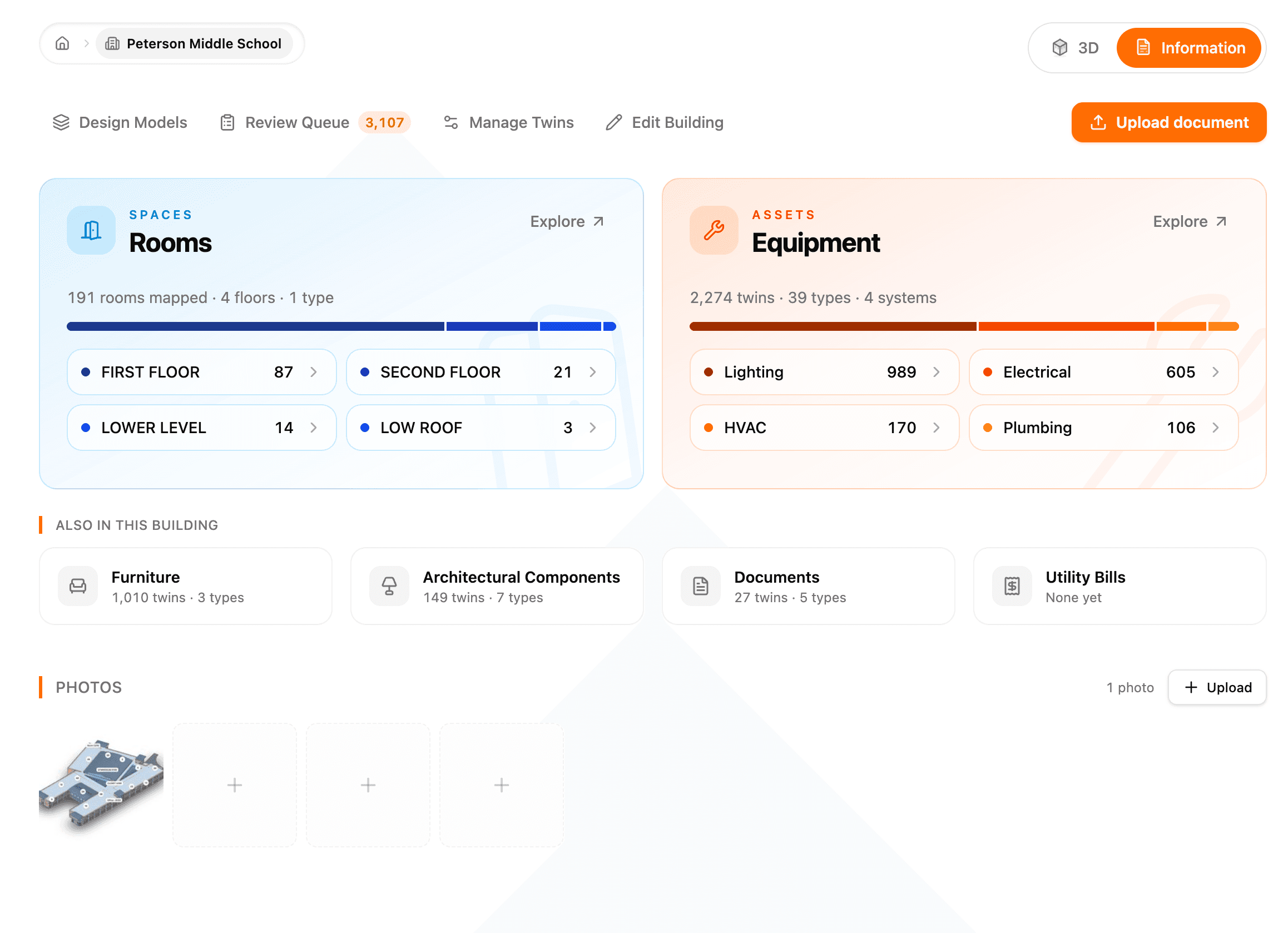
The building page now opens with two breakdown cards: Rooms grouped by floor and Equipment grouped by system, each with counts you can click straight into.
Furniture, building fixtures, documents, and utility bills are summarized in an "Also in this building" row, and building photos live directly on the overview.
A new Create Twin button in the building header lets you add a twin without leaving the page, and Create Building has moved into the Buildings group in the sidebar.


Filter the 3D Viewer by Type
A new Filter by Type panel in the 3D viewer lets you show only the categories you care about, such as HVAC, electrical, lighting, or plumbing equipment, with counts for each.
Switch between the building's own categories and the ontology tree, expand a category to pick specific types, and clear the filter with one click.
The selected twin is now highlighted against a ghosted building.

Utility Bill Payments
Record a paid date and amount paid on each utility bill and filter bills by status: unpaid, overdue, or paid.

Pipeline Compare & Apply
A new Compare button on the pipeline canvas lets you compare a pipeline against a sibling pipeline or an exported pipeline JSON file.
The diff view shows every node in place, color-coded by outcome, with per-field content changes and a side panel that lists each change and anything that would block an apply.
Once you have reviewed the preview, apply it as a merge or a full replace. Replace calls out deletions and run history before you confirm. (3.21.1)
Building Types, Parent Organizations & Task Matching
Set a building type when creating a building. Tasks are matched to the building type, so a hospital and an office see the task templates that apply to them. (3.21.1)
Organizations can be grouped under an optional parent organization to mirror how your portfolio is structured.
Users & Invites
Inactive users can be disabled, and organization invites now expire instead of staying open indefinitely.
Administrative routes are gated behind SuperAdmin with an audit policy, and file deletion is scoped to the owning organization.
BIM & Twin Properties
Export a BIM discipline's full property inventory as a workbook. Twin property sections are tabbed with clearer section titles, and unplaced twins are labeled by the provider they came from.
O&M manual searches keep running in the background while you navigate, and the manual is found using the Syyclops model number.
Fixes
Telemetry now loads smoothly for equipment with hundreds of sensors, the panelboard skill reads spare capacity, work order upload dates are preserved, twins search results stay inside the viewport, and a closed twin's relationships no longer break the twin page.
Large BIM model deletions complete reliably, the section box is cleared when switching buildings, and the viewer mode stays in sync across browser tabs.
Archive
Earlier releases, grouped by month. Expand a release to read its notes.
3.20Streaming Pipelines, Studies, Relationships as Properties & BIM Model IssuesAug 6, 2026
Aug 6, 2026
Streaming Pipelines
Streaming pipelines can now be authored directly on the pipeline canvas, bringing live telemetry sources into the same builder used for batch pipelines.
Each streaming pipeline reports its live health so you can see at a glance whether data is flowing, and the pipeline list is paginated so every pipeline is reachable.
Studies
The AI Engineer can now direct 3D snapshots of the model while composing a study, and every study is mirrored as a document you can open, share, and search.
Studies can be imported from existing documents, and study reports cite their sources from a tenant-scoped document search.
Relationships as Properties
Single-valued relationships (for example, the room an asset feeds or the panel it is powered from) now behave like properties: edit them inline on the twin, and create the target twin on the spot if it does not exist yet.
Relationships are available as layout fields in the layout designer, the twin form, and bulk edit.
BIM Systems, Views & Model Issues
BIM systems and views are imported alongside the model, BIM uploads show each processing stage as they progress, and a new model issues console flags problems in design models before they reach the twin.
Equipment & Telemetry
Equipment twins gain nameplate voltage, current, and dimension properties, telemetry points can be assigned a unit directly, and the AI Engineer can write map-valued twin properties.
Redesigned Rooms, Documents & Utility Bill Pages
The building rooms page, the documents page, and the utility bill detail page have all been redesigned. Documents can be renamed in place, and room wall types are picked without dropdowns.
The portfolio equipment donut is replaced by a grouped breakdown, the section box can be filtered by interface, and a work order shortcut was added to the navigation.
AI Engineer & Work Orders
The AI Engineer and image describer have been upgraded to a newer, more capable model, and the work order form suggests a location for you.
Fixes & Security
HEIC photos are converted to JPEG automatically, downloaded files keep their display name, document names are middle-truncated with the full name on hover, and archived pipelines show the right status.
OAuth sign-ins are bound to a verified identity, verification failures are logged server-side, and email templates escape HTML.
3.19Panel Schedule & Curated Property FixesJul 27, 2026
Jul 27, 2026
Fixes
Panel schedule circuit descriptions save and display correctly, and empty complex curated properties can be edited in place.
Pipeline SQL transforms are restricted to their own input and handle literal semicolons (3.19.1), and ACE telemetry is coerced by its BACnet object type.
Security
Groundwork for a fail-closed OAuth token verifier. (3.19.1)
3.18Asset Page Tabs, Utility Bill Types & Streaming TemplatesJul 24, 2026
Jul 24, 2026
Asset Page Tabbed Layout
Asset pages use a tabbed layout so long property lists are easier to scan, and O&M manual searches run as a background job.
Utility Bills
Additional utility bill types are supported, and a warning appears when a bill's meter charges do not add up to its total.
Streaming Pipeline Templates
Ready-made streaming templates for Kaiterra and ACE telemetry sources, and cost tracking for Studies in the admin console.
Mobile
Upload and view videos from the mobile app.
Fixes
Meter data fixes, room names no longer show when they should not, O&M manuals are found for inactivated model numbers, organizations are sorted alphabetically, the panelboard circuit skill is corrected, and cross-organization building share links work.
3.17Studies Generally Available, O&M Manuals, Wall Makeup & Submeter LinksJul 21, 2026
Jul 21, 2026
Studies Is Now Available to Everyone
Studies, introduced behind a flag in 3.16, is enabled for all users. Study PDF export and publish are fixed in production, organization members can access a study's chat thread, and downloads use safe filenames. (3.17.1)
Facility & Building Data
Record wall condition makeup on rooms, link submeters to the panelboard they feed, and fetch the O&M manual for a piece of equipment with a manufacturer fallback.
A new Meter tab on the asset page. (3.17.2)
Twin Layout Cards & Ontology Navigation
Twin pages use layout cards, and you can navigate the ontology tree from the app and the admin console.
Streaming Pipeline Foundation
The plumbing for streaming pipelines landed: a streaming transform library, node processors and executor, an MQTT worker runtime with reconnect, and run sessions with a control channel and health reporting. (3.17.1)
Improvements & Fixes
Autodesk translations are cached, large mobile media uploads are chunked, and deleting a file cancels any extraction still running.
Breadcrumbs collapse responsively, document counts refresh after a delete, the 3D toggle is guarded when there is no model, floor selection and the chat panel layout are fixed, and Autodesk webhooks authenticate with a per-model secret so BIM translations no longer hang.
Security
Deleting an organization, assigning or inviting a SuperAdmin, and the job dashboard are gated behind SuperAdmin; organization invites and member permissions follow the role hierarchy; bulk twin status updates are scoped to your organization; and admin invite creation is audit-logged. (3.17.1, 3.17.2)
Collabora document editing uses a dedicated token secret and an iframe allow-list.
3.16Studies Workspace, Task Versioning & Admin Pipelines ViewJul 13, 2026
Jul 13, 2026
Studies Workspace
A new Studies area with a sidebar, list, and tabbed workspace. Compose study documents natively as DOCX with live in-browser editing, keep a full version history with attribution, diff, and revert, and drop 3D element snapshots straight into the document.
Export a study document or publish it to the building as a versioned document twin. Studies shipped behind a feature flag in this release.
Tasks
Tasks gained bulk replace and versioning across the app and the admin console.
Admin & Design Models
A new pipelines view in the admin console, the ability to cancel a design model translation, standardized admin page layouts, and a clear distinction between pending invites and members.
Twins & Mobile
Shift-click to select a range of twins. On mobile, upload and delete building photos.
Fixes & Security
Building photos are counted from image twins, cancelling an upload actually stops it, deleting a file stops its extraction, and replacing a BIM model fails closed instead of corrupting data.
Building-level access is enforced on uploads and review actions, file reviews and IoT telemetry are isolated per tenant, and environment secrets moved to Azure Key Vault.
3.15In-App Twin Management, Curated Sections & Work Order ExtractionJul 1, 2026
Jul 1, 2026
Manage Twins Without Leaving the App
Create relationships between twins, reclassify a twin to a different interface, and map assets to model elements directly in the app instead of through a data pipeline.
A twin diff viewer in the admin console shows exactly what a pipeline run changed.
Curated Property Sections
Administrators can define which properties appear on a twin page and how they are grouped, using a property picker in the admin console.
Work Orders
Upload a work order document and let the AI extract it into a structured work order. Create your own work orders on mobile and web, and delete a work order from its detail view.
3D Viewer
Filter assets by category, crop the model with a section box, and zoom and pan the image viewer with the mouse wheel.
Room sizes and wall boundaries are read from COBie space data, and sensors are placed on the room layout with their relationships. (3.15.1)
Studies Foundation & Electrical
The Studies data model and a feasibility agent that runs chat, method, and discovery landed as the foundation for the Studies workspace.
Track per-phase kVA load on electrical circuits, and use additional utility bill types.
Admin & Mobile
Audit logs are available in the admin console, the admin sidebar, users, and audit logs were restructured (3.15.1), inviting users is smoother, and admin files can be sorted.
On mobile, photo uploads no longer block the app, and building photos can be opened from the interface list.
Security
Design models, files, and apps are scoped strictly to the owning organization, a SQL injection path in the data lake was closed, and authentication and sessions were hardened as part of SOC 2 work.
3.14Work-Order-Aware AI, Twin Editing Through Chat & Building Page RedesignJun 15, 2026
Jun 15, 2026
AI Engineer Understands Work Orders
An Ask pill on every work order opens the assistant pre-loaded with that work order's context, so you can ask what was done last time on this asset, what commonly fails on this type, or where it is located.
The assistant answers from your building's own history and is instructed not to invent history when the data exists.
Edit the Digital Twin Through Chat, With Review
The AI Engineer can propose a batch of twin changes. You review each one with a visual property diff, approve or reject it, and only the approved subset is applied.
Affected data refreshes automatically once changes are applied, and any conversation can be saved as a reusable, schedulable task with the prompt auto-drafted for you.
Redesigned Building Page & Spreadsheet-Style Properties
The building page leads with a prominent Upload Document action, surfaces category folders higher, and adds an inline photo strip.
Twin properties were reworked into a transparent, spreadsheet-style grid: borderless until you hover, single-click editing, and inline descriptions. Long twin pages get an "On this page" navigation rail.
Rooms are grouped by floor with a floor filter, documents can be sorted by newest, oldest, or name, and manually created work orders can be deleted.
Bulk Property Updates & Assignments
Multi-select twins of the same type and set a property such as model number on up to 500 of them in one all-or-nothing update.
Assign a work order to any person with a find-or-create picker on web and mobile. The same picker works for relationships like serviced by and owned by.
Mobile App
A four-step onboarding flow introduces the AI Engineer, navigation, photos, and twin enrichment on first launch.
Edit twin properties inline, browse the calendar with month, week, day, and 3-day views, and capture photos and videos on rooms and equipment, not just work orders.
A redesigned full-screen photo viewer adds one-tap native sharing.
Tasks & Admin
Task visibility is simpler: your tasks are visible to your organization, admin tasks are global, and admins choose which global task folders each organization sees from a new Task Folders tab.
The admin members list shows Last Active and login count, and the admin Tasks page supports multi-select and bulk delete.
Visual Pipeline Builder
A brand-new visual builder for data pipelines replaces the previous tooling and lays the groundwork for self-serve integrations. Pipeline files can be dragged straight onto the import dialog.
Security & Data Integrity
Closed a cross-tenant authorization gap so every organization-scoped request verifies membership, scoped utility bill extraction to your organization, and put the job dashboard behind admin authentication.
Deleting a document no longer deletes the twin it was attached to, global search stays in sync as twins change, and stale cross-organization relationships no longer produce duplicate equipment rows.
Maps and Google sign-in degrade gracefully during a Google outage, with Microsoft sign-in staying available.
3.13Equipment Layouts, Calendar Overhaul, Mobile Push & Pinned ThreadsMay 21, 2026
May 21, 2026
Custom Equipment Layouts
Equipment pages now use curated, sectioned property tables with count badges and "Click to add" placeholders for unset values.
Layouts shipped for air handling units, chillers, boilers, cooling towers, fan coil units, unit heaters, pumps, fans, terminal units, VAV boxes, water heaters, lighting, fire alarm, security, and more.

Calendar Overhaul
The calendar gained Day, Week, Month, and Year views with a national holidays overlay, an Apple-style day view with a current-time line, and full dark mode support.

Mobile App
Push notifications for mobile-initiated tasks and threads, with in-app banners and a per-user opt-out.
Take photos directly from a work order, re-capture from the full-screen viewer, and add notes. The home screen is now a per-building dashboard showing recent tasks, work orders, and photos.
A floating AI Engineer bubble on every screen opens a chat that already knows which building or twin you are looking at.
Chats & Tasks
Pin chat threads to keep them at the top of the thread list, jump back to the bottom of a long streaming answer with one tap, and search tasks across all folders at once.
Newly created tasks appear in a dedicated Pending section, and chat threads opened inside a building automatically know its address, coordinates, and timezone.
Admin
An organizations map view plots every building across your organizations on a clustered map, and a member's role can be changed without re-inviting them.
A new LLM cost and usage view drills from organization to task to thread, and prompt caching significantly reduces the cost of long agent runs.
Fixes
Work order status filters no longer match historical values, utility bill review items survive navigation and refresh, deleting a document returns you to where you came from, and inviting a Member selects all buildings by default with building-level access enforced in twin queries.
3.12Portfolio Calendar, Smarter Task Runs, Building Photos & Utility Bill EditingApr 17, 2026
Apr 17, 2026
Portfolio Calendar
A new cross-building calendar shows all events and work orders across your portfolio. Events render as bars from start to end date, recurring events expand automatically, and work orders sit on their due date.
Smarter Task Runs
Task cards show the latest run status and count, and a Run History sidebar lists every run with duration, who triggered it, tokens used, and cost.
Every task gets an auto-generated description, task runs get meaningful thread titles, you can declare the expected output file types, any task can be duplicated, and unsaved changes prompt before you leave.
Utility Bills
A 12-month statement is extracted as 12 separate bills, with meter totals and peak demand taken directly from the bill.
Edit any field inline on the bill detail, delete with confirmation, and add properties the AI missed.
Documents
The documents library gained thumbnail cards, extension color coding, and fixes for files getting stuck in processing, including password-protected PDFs and HEIC uploads.
Building Photos
Snap a photo from the mobile sidebar, pick a building, and add a note. Photos appear in a grid on the building page on web, with upload and drag-and-drop.
3D Viewer & Twin Data
Telemetry charts label lines with the sensor's actual name, the Manage Telemetry page shows every telemetry point, the work order heatmap renders in 3D mode, and Autodesk model translations are cached so repeated uploads load faster.
Admin & Reliability
A role accessibility matrix in organization settings shows exactly what Owners, Admins, and Members can do.
A large reliability pass on FMX sync: no more cross-building invalidation, building twins stay active, shared twins are no longer recreated daily, and telemetry units are preserved on re-sync.
3.11Tasks Rebuilt, AI-Built Apps, Interface Navigation & Document ReviewApr 1, 2026
Apr 1, 2026
Tasks Rebuilt
Tasks are organized into predefined folders such as Critical Asset & Risk Analysis, Energy & Sustainability, and Compliance & Inspection, with a sidebar and detail layout, auto-typed cards, and type filters.
New tasks start as pending and are approved by an admin before they can run. Test a prompt from the edit page, use Improve to have the AI rewrite it, and pick a building before each run.
Completed runs show status, duration, and the output files created, and the completion email attaches them. A library of ready-to-use global tasks is included out of the box.

AI-Built Apps
Describe what you want and the AI Engineer builds an interactive app with access to your building data. Larger apps are built in stages with a visible plan.
The agent can edit an existing app, an error overlay lets you send a crash straight back to the agent to fix, and all apps are collected in an Apps hub per building.
AI Engineer
The file viewer has tabs for switching between generated files, running threads show a spinner, organizations have a monthly AI budget, and the AI Engineer moved to a newer model with a larger context window.
Work Orders & Utility Bills
The work order detail page was rebuilt with a toolbar header, status dropdown, and Overview, Files, and Activity tabs.
Drop multiple utility bill PDFs at once; each is extracted in parallel and reviewed in a batch dialog.
Building Navigation & Twin Intelligence
The building page shows interface categories such as Equipment, HVAC, Spaces, Work Orders, and Documents instead of auto-generated collections.
Twins use COBie names from BIM metadata, equipment is classified from OmniClass codes into specific interfaces like Fan Coil Unit or Air Handling Unit, and syncs upgrade to a more specific interface automatically.
Document Review
AI-generated document connections are reviewed one at a time with prev/next navigation, with the 3D viewer highlighting the targeted equipment beside the PDF source. Decisions can be reversed.
Admin & Mobile
Members in multiple organizations show as one row with an organization switcher, and expired invite links show a helpful message instead of a generic error.
The mobile app gained haptic feedback, larger touch targets, and better dark mode contrast.
3.10Work Order System, Utility Bills & Document DeletionMar 23, 2026
Mar 23, 2026
Work Order System
Create, track, filter, and manage work orders inside the building view. The creation form covers details, schedule, and relationships, linking assets and spaces with twin search.
The list is card-based with status accents, location metadata, and overdue highlighting, topped by a status distribution bar and KPI cards that act as quick filters.
Utility Bills
Upload utility bill PDFs and the AI extracts dates, charges, and meter readings into a pre-filled form, or enter bills manually with multiple meters.
Filter by service type and year, see monthly spending with year-over-year comparison, and view a six-month forecast. A building dashboard card shows bill count and latest charge.

Document Deletion & Reprocessing
Documents created through the processing pipeline can be deleted with full cleanup of pages, embeddings, and search entries. Admins can view, filter, and bulk-reprocess files.
Shared Task Threads
Organization members can view the run threads of tasks shared by other users, in read-only mode.
3D Viewer & UI Polish
Room labels in the 3D viewer are clean text labels that are easier to read, and breadcrumbs and the 3D/Information toggle use an inset style embedded in the page.
The tasks page was redesigned, equipment collections with a single type auto-expand, and Open in Google Maps uses the building's address instead of coordinates.
3.9Intelligent Document Processing, Collections Redesign & Mobile AppMar 16, 2026
Mar 16, 2026
Intelligent Document Processing
Uploading a PDF to a building now runs a full processing pipeline: page extraction, chunking, embeddings, and document twin creation.
AI-generated connections between documents and existing twins give the AI Engineer richer, graph-based context. The documents page shows every document classified by type.
Collections & Equipment Pages
A refreshed building header, folder-style collections grid, and collection headers with stats. HVAC equipment is grouped by type in a collapsible list instead of a paginated table.
Equipment detail pages open with a lifecycle overview: remaining life, age, expected life, last service date, and model and serial number badges.
Rooms show the assets located in them, and the building list in the sidebar supports search.

Mobile App
The Syyclops mobile app brings AI chat with streaming responses, the building portfolio, twin pages, task management, work orders, Google and Microsoft sign-in with two-factor authentication, and dark and light mode to iOS and Android.
AI Chat
Sub-agent tasks are more compact with a View Summary button always visible, the document loader previews content as it streams in, and the thread switcher scrolls through your full history.
Fixes
Resolved very slow queries that caused timeouts, erratic zoom over room labels in the 3D viewer, the dashboard rendering over document mode, and properties showing twice after a provider override.
3.83D & Document Modes, Collections, AI Side Panel & 2FAMar 6, 2026
Mar 6, 2026
3D vs Document Mode
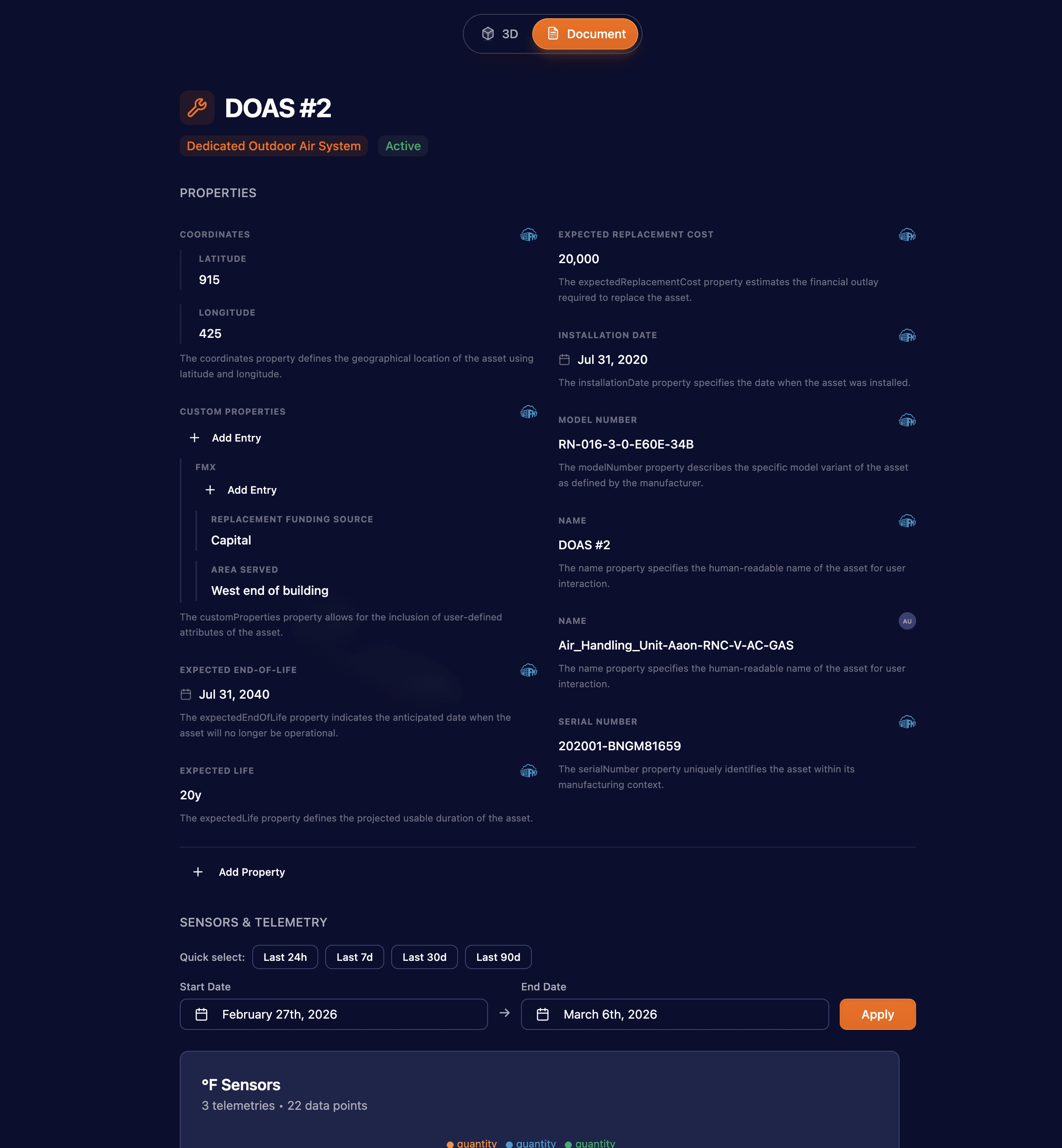
The twin detail experience now supports two distinct viewing modes.
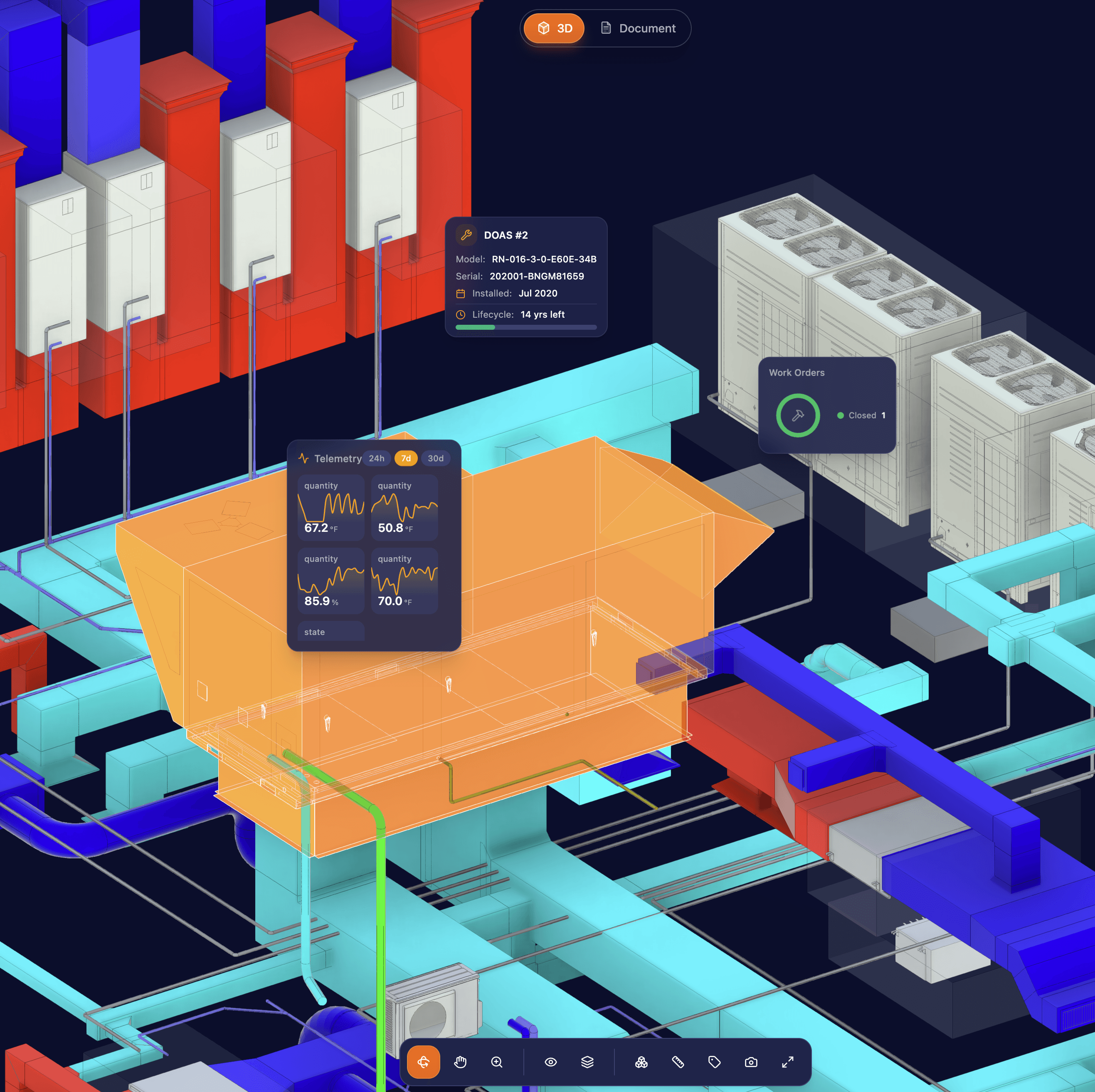
3D Mode displays the building's 3D model with interactive twin visualization, status badges, and work order clustering.
Document Mode presents twin data in a structured, form-like layout with properties, sensors, files, and related work orders organized into readable sections.
Users can switch between modes depending on whether they need spatial context or detailed data review.

AI Assistant Context-Aware Side Panel
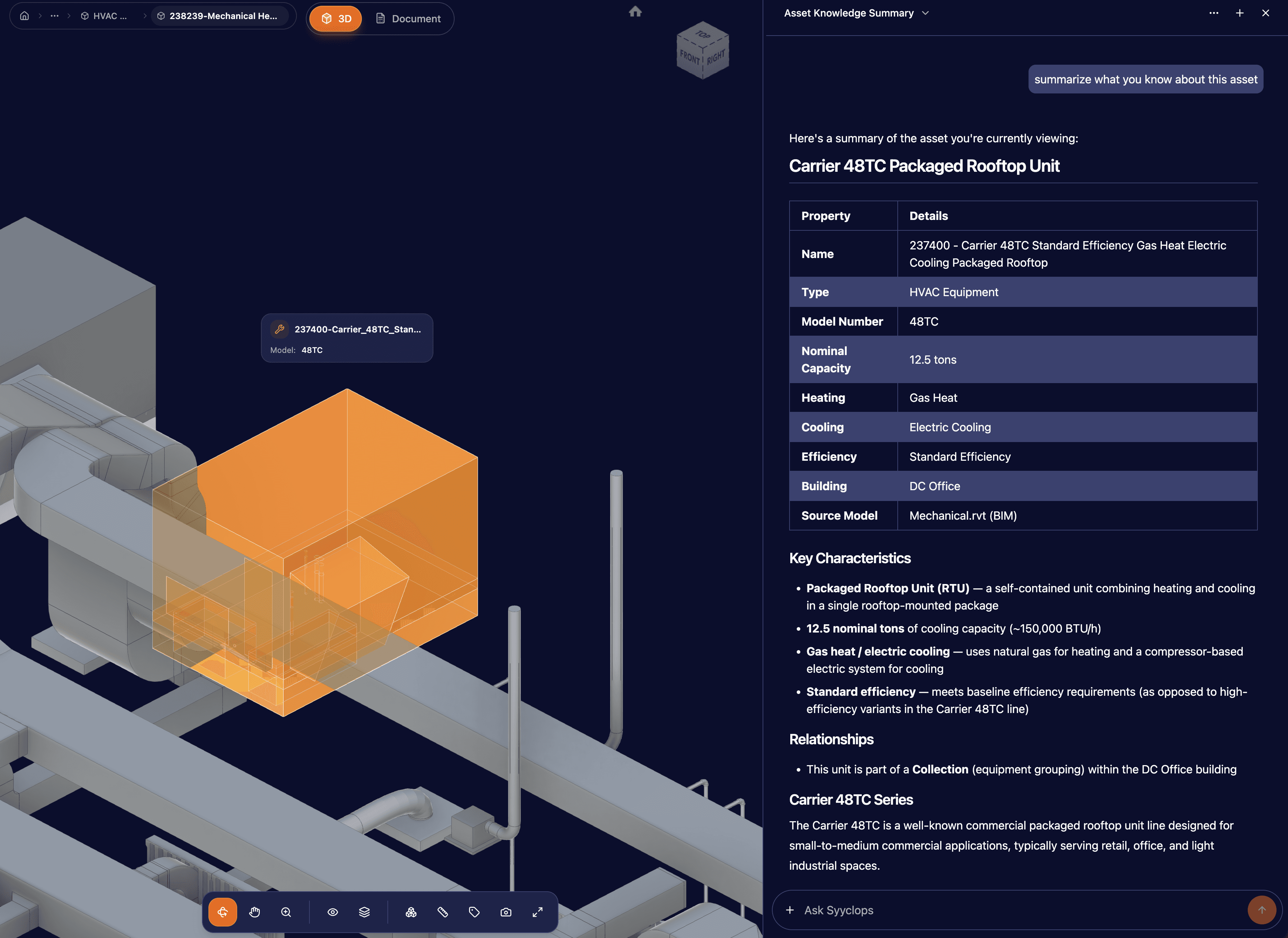
The AI chat assistant has moved from a standalone page to a right-side panel that stays open alongside the twin you're viewing.
The assistant now has full context of which twin, collection, or building you're currently looking at, enabling more relevant and accurate responses.
Ask questions about the equipment, room, or building on screen and the AI uses that context to provide targeted answers.
Collections & Layout System
A new collections-based data organization system with custom detail pages for buildings, rooms, equipment, and work orders.
Facility managers can navigate building data through rich, organized views showing real-time sensor data, work orders, equipment status, and room environments.
Two-Factor Authentication (2FA)
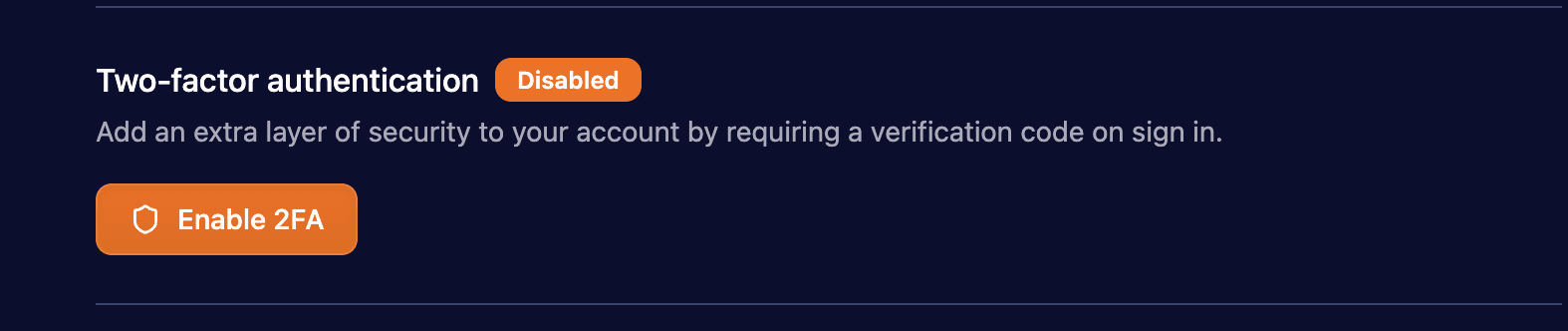
Users can now secure their accounts with two-factor authentication using authenticator apps (TOTP).
Includes backup code generation and trusted device support. New members are prompted to set up 2FA after accepting an organization invitation.
Work Orders
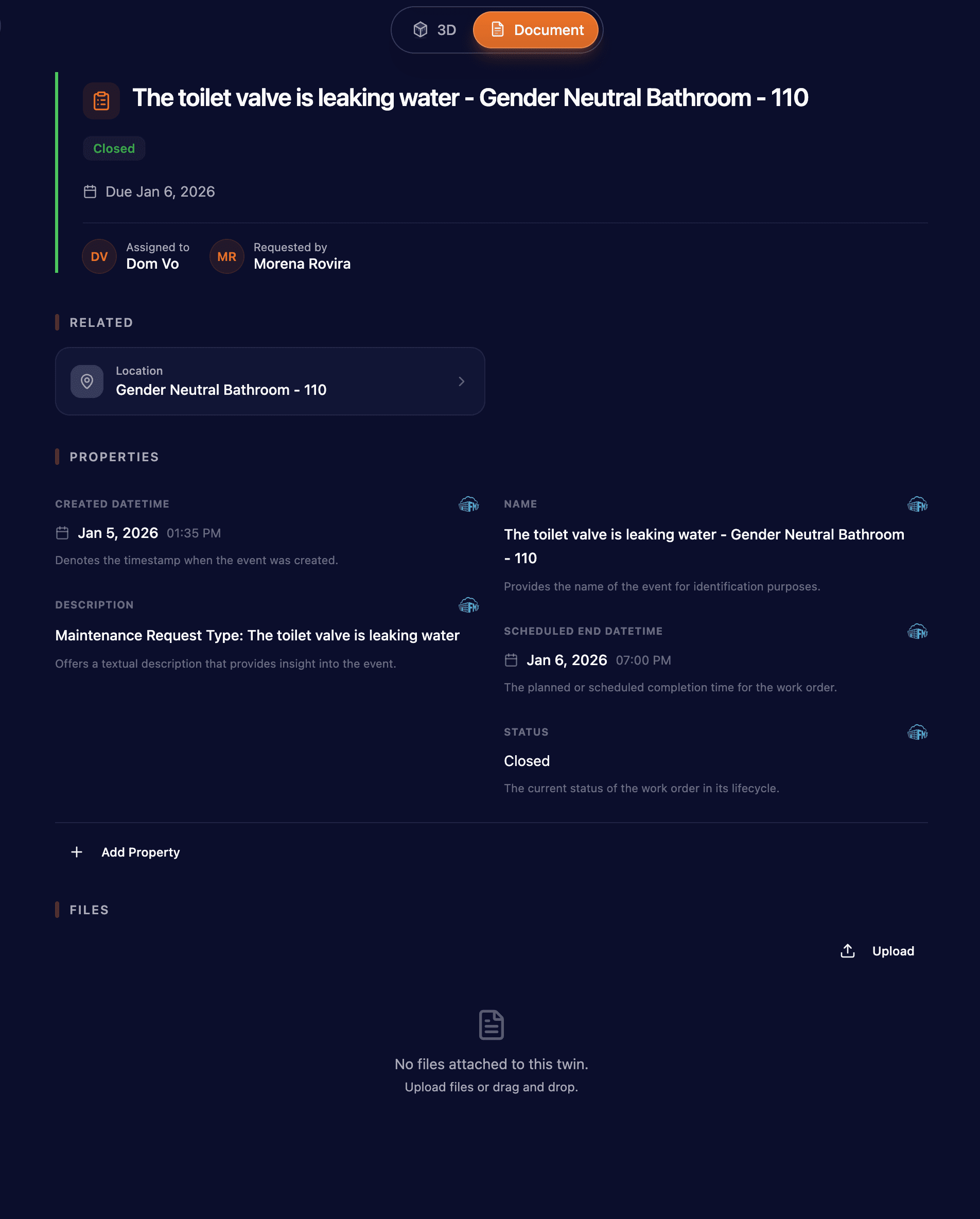
New work order detail pages with relationship tracking, status badges, and assignment info.
Includes enhanced work order visualization in the 3D viewer with clustering.
PDF and Excel File Generation
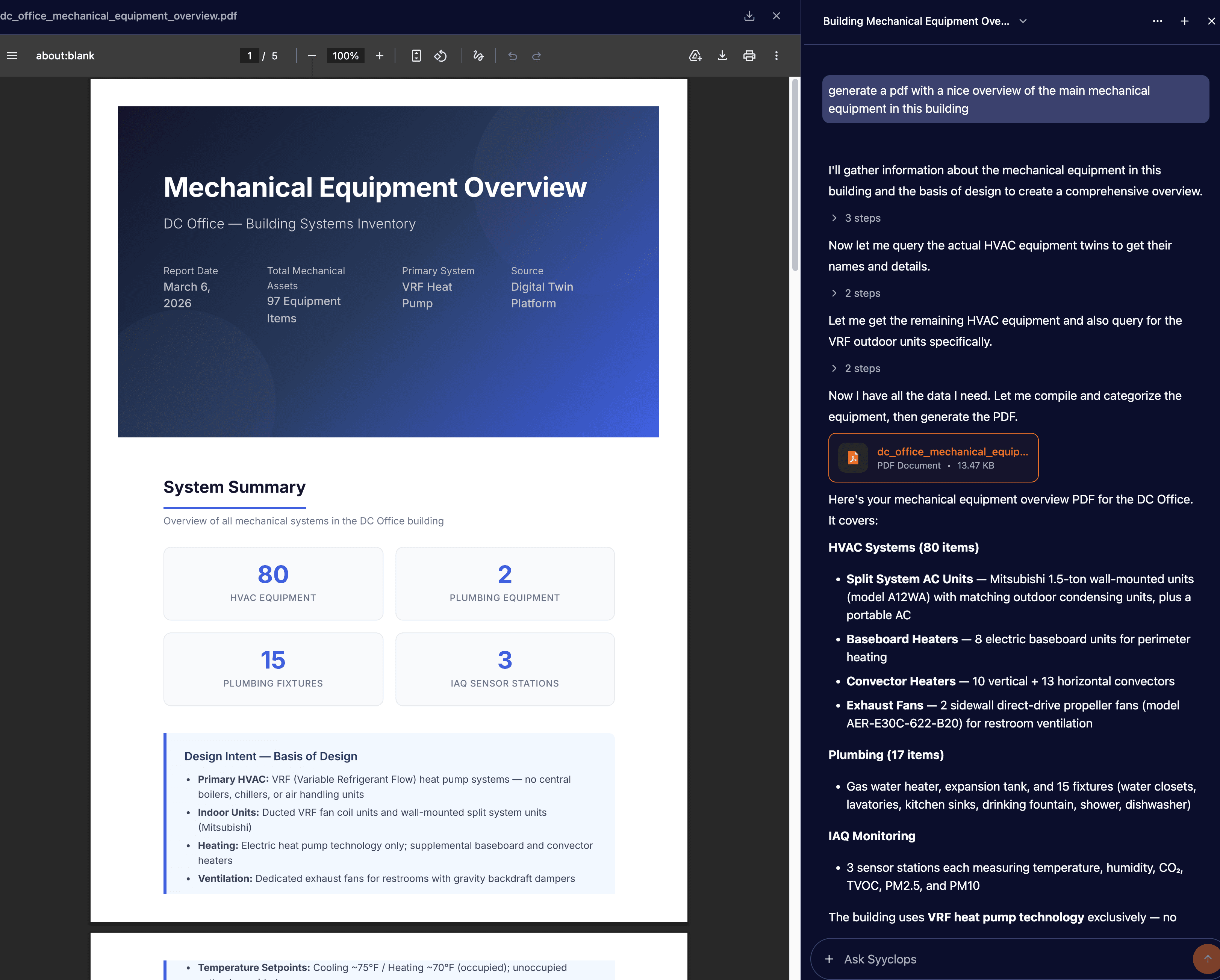
The AI Engineer now has the ability to create PDF and Excel files.
Cross-Building Shared Twins
Organization-wide entities (Departments, Companies, Persons) can now be shared across all buildings instead of being scoped to a single building.
Building Properties Management
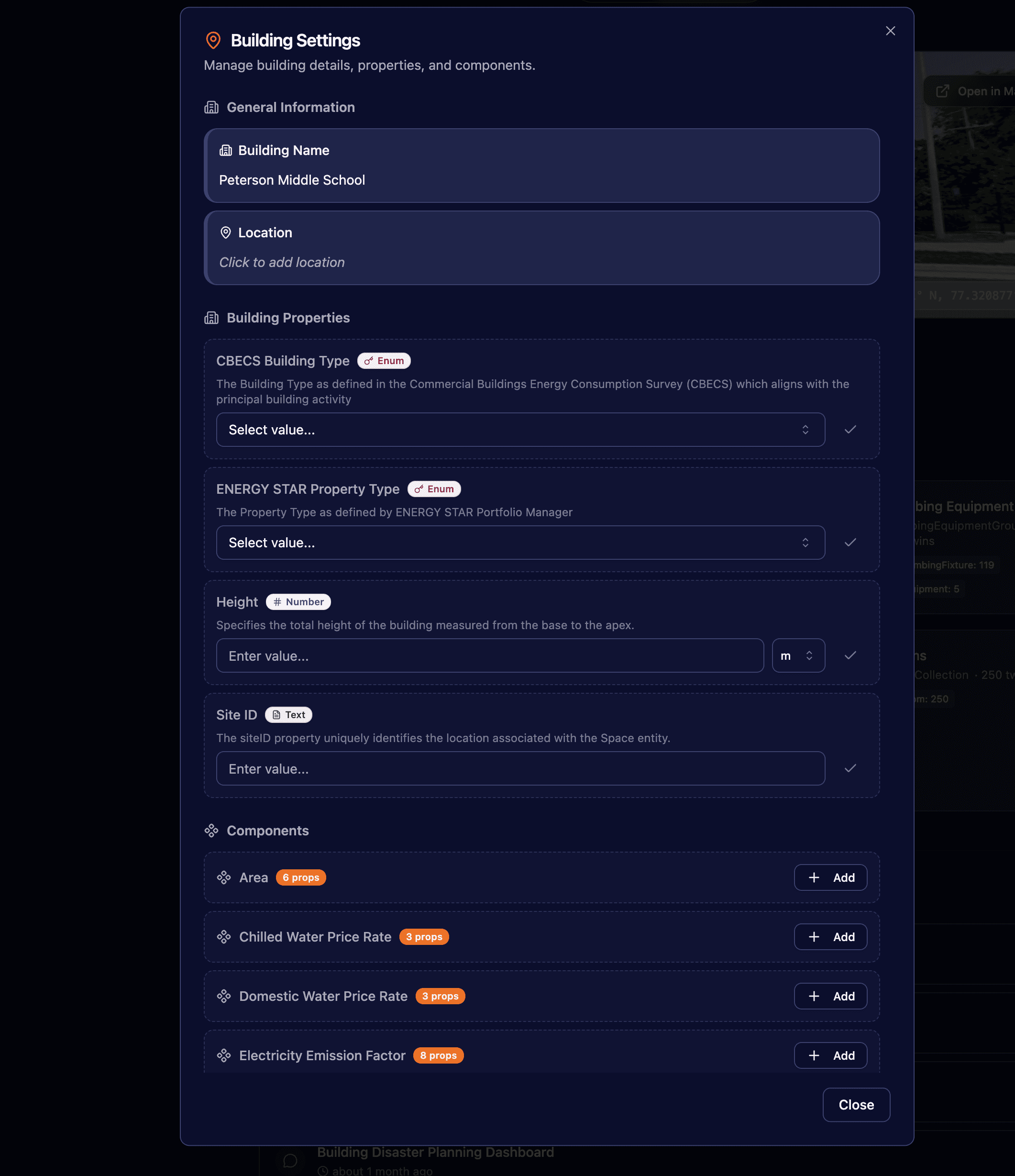
Manage building configuration properties (area, occupancy, energy rates) in a dedicated settings interface with organized sections.
Navigate to the Building, select Document mode, and click the edit button.
Delete Twin Properties
Users can remove manually-created properties from twins. Provider-owned properties are protected.
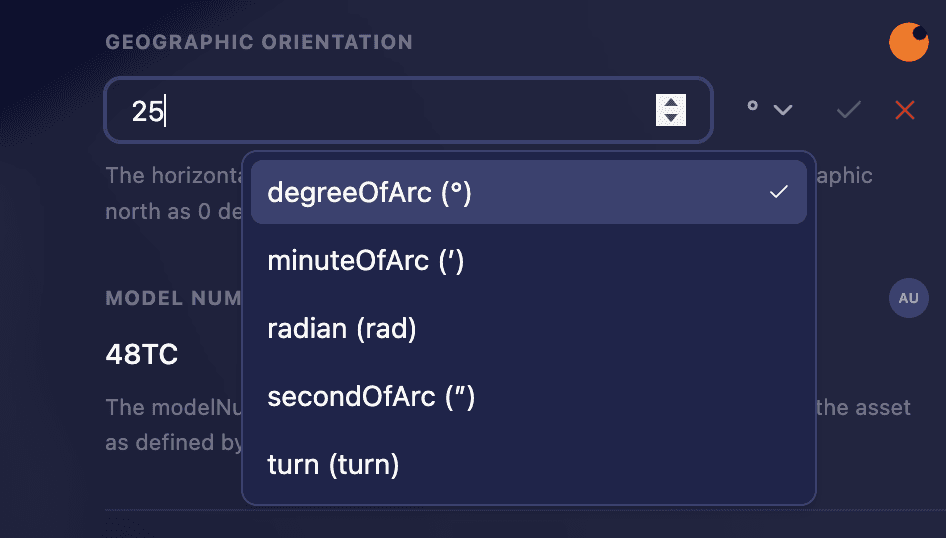
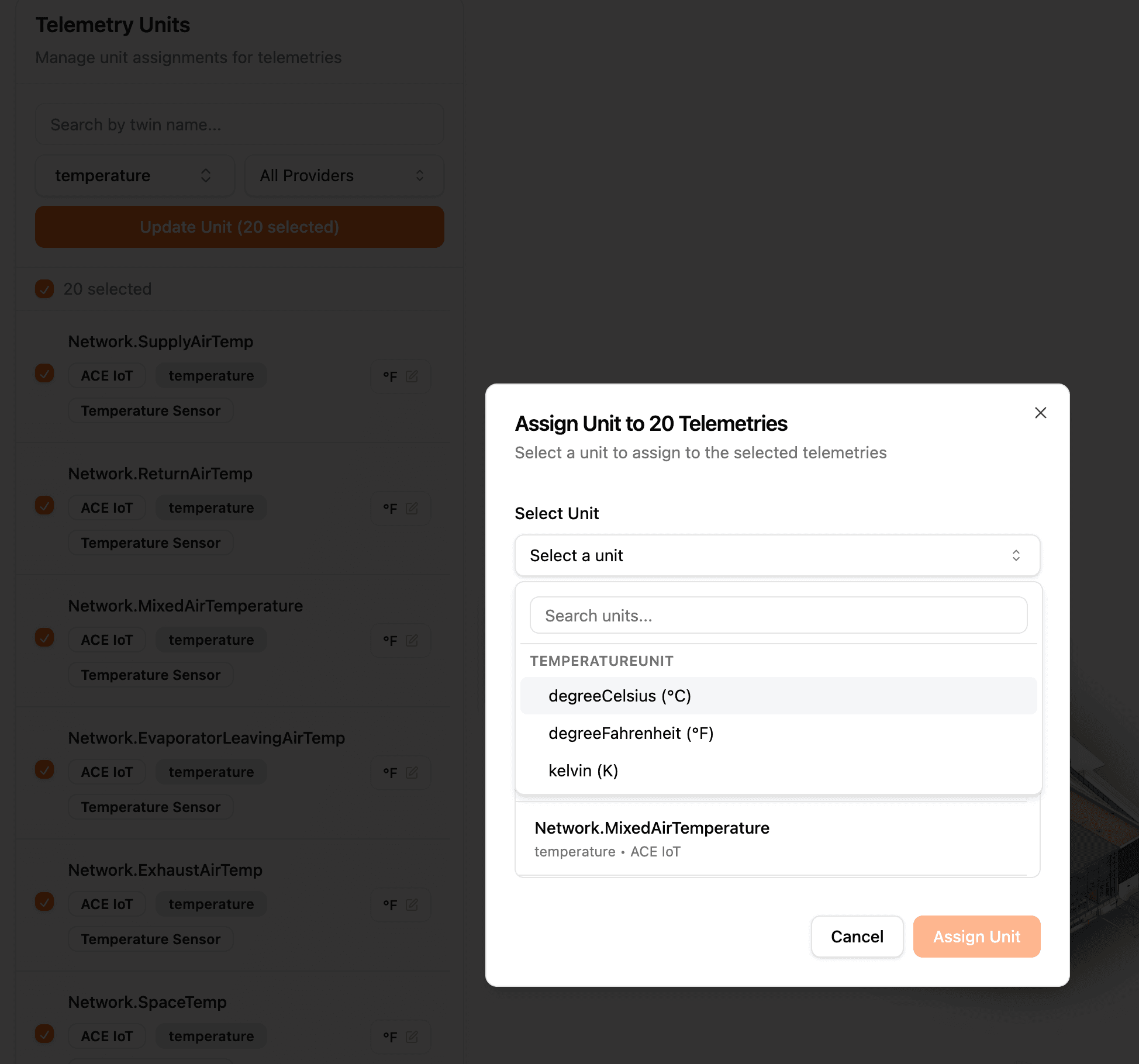
Unit Selector for Properties
Change measurement units for numeric properties inline (e.g., °C to °F).
Panelboard Circuit Descriptions
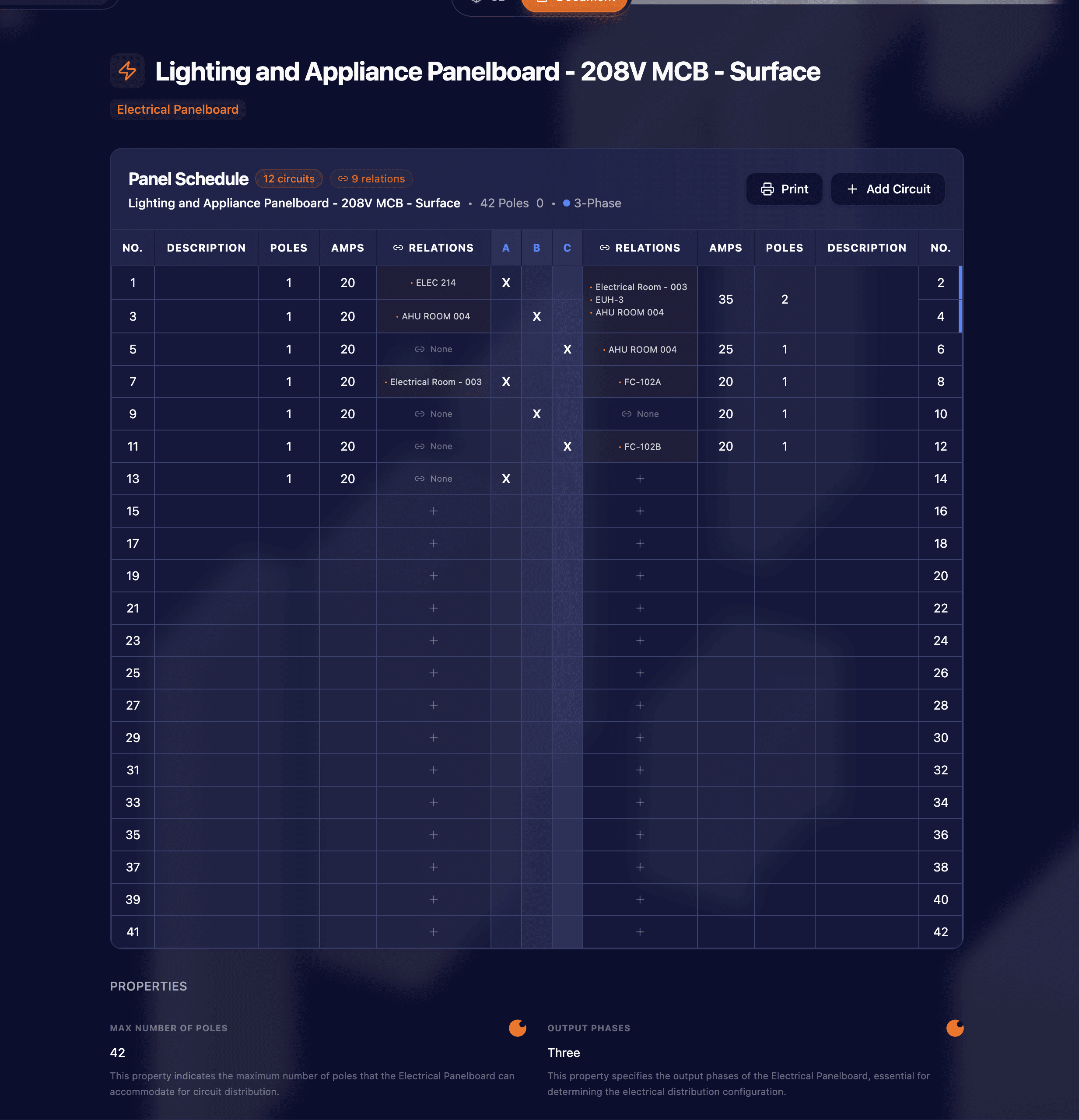
Technicians can document electrical circuit purposes directly in the panelboard panel schedule UI with a new description column.
3.7Tasks for AI Engineer, Audit Logs & Multi-BIM UploadFeb 13, 2026
Feb 13, 2026
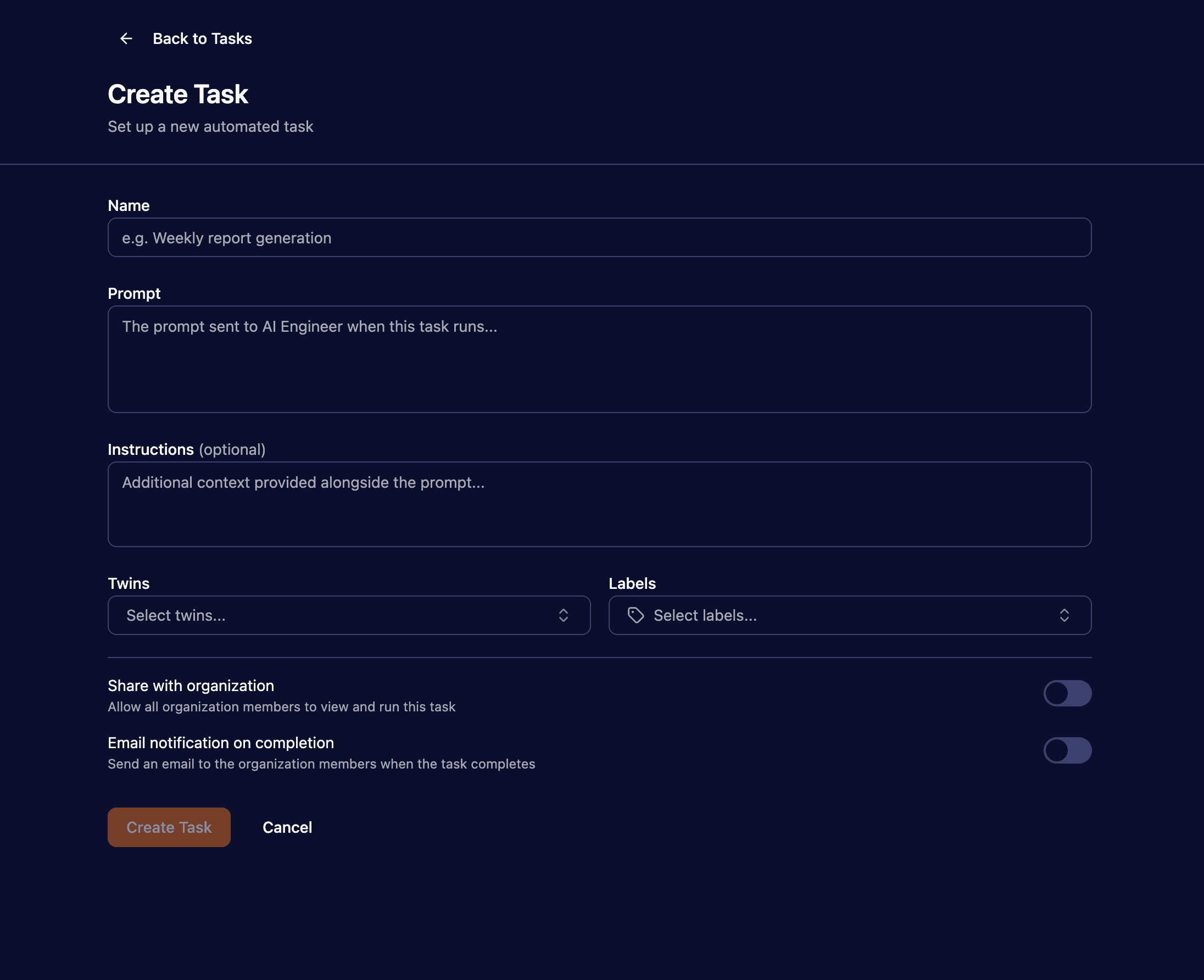
Tasks for AI Engineer
Create and share AI prompts across your organization.
Tasks support twin associations, labels, starring/archiving, email notifications on completion, and a full run history with status tracking.
Shared tasks show creator attribution and allow org-wide collaboration.
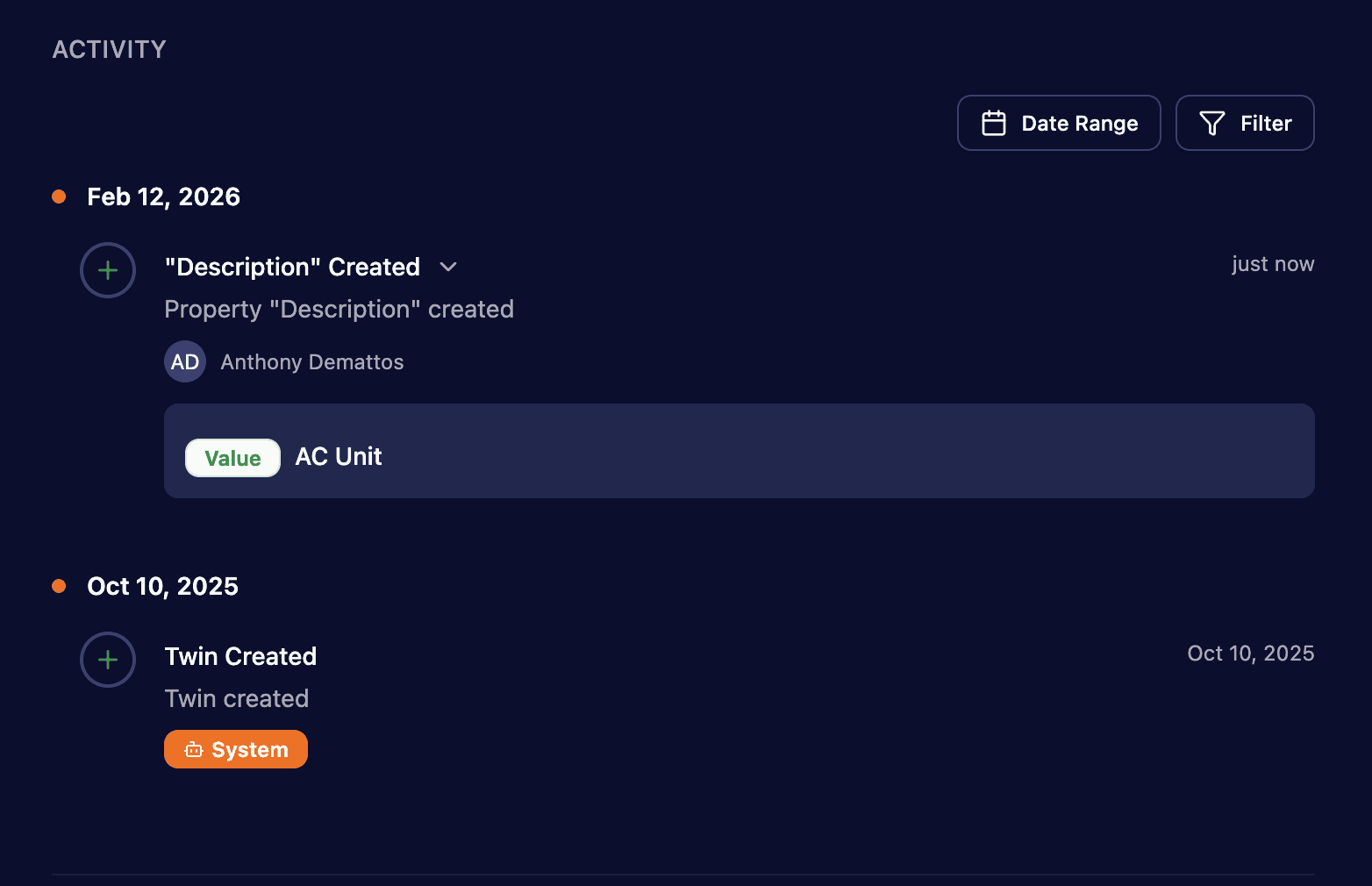
Audit Logs
A complete activity trail for every significant change to twins, properties, relationships, and lifecycle events.
Covers property modifications, relationships, file uploads, classification changes, status changes, data source switches, merges, and bulk operations.
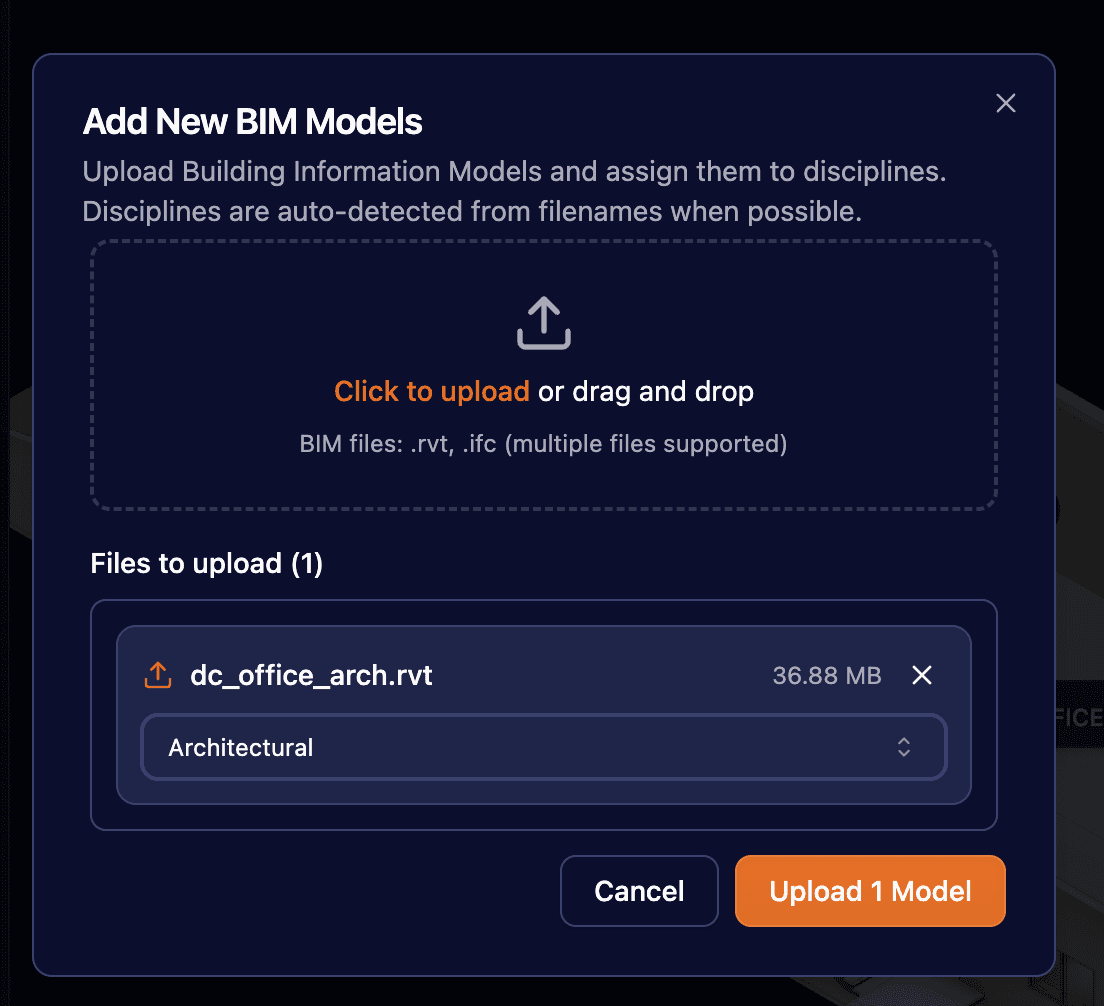
Multi-BIM Upload
Upload multiple BIM design models simultaneously with automatic discipline recognition via pattern matching.
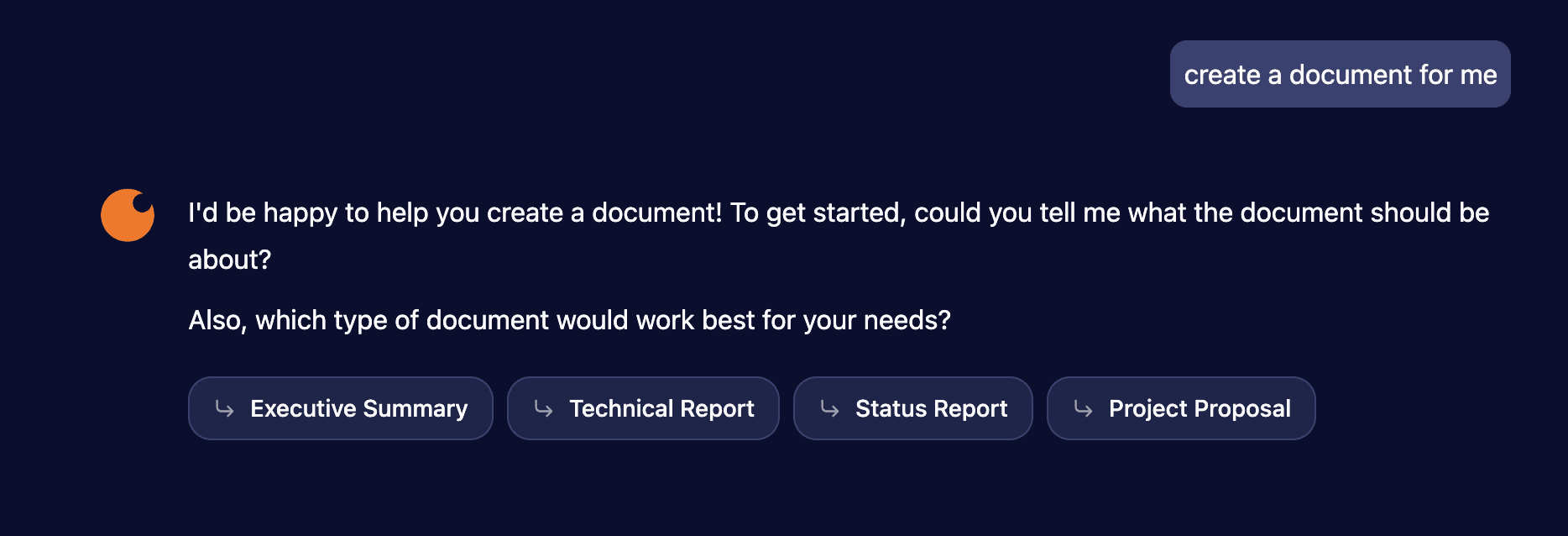
AI Engineer Document Templates
Standardized document generation with 10 templates across 4 categories: business, technical, onboarding, and presentation.
A new suggestions tool presents clickable template options when the document intent is ambiguous, with selection state persisting across page reloads.
AI Engineer Context Compaction
Automatically summarizes conversation context when it approaches token limits, reducing cost while preserving functionality.
A frontend indicator shows when compaction occurs.
AI Engineer File Output Size Reduction
Smaller, more concise AI-generated documents through improved guidelines.
File size is now displayed on file cards and in the file viewer header.
Autosave for Twin Properties
Property fields now auto-save on blur, with Enter to save and Escape to cancel.
Includes inline error handling and loading indicators. Boolean toggle fields save immediately on click.
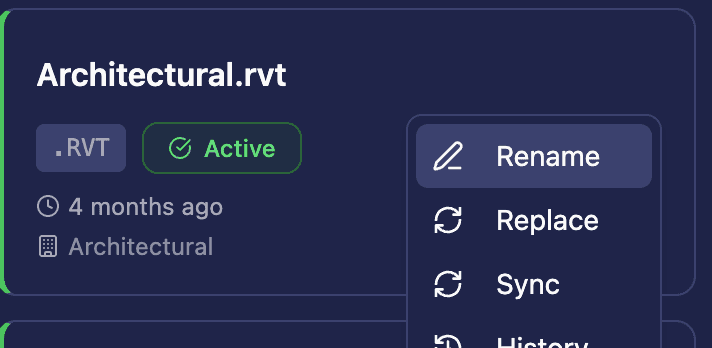
Design Model Sync
Sync individual Autodesk design models without a full re-upload.
Useful for pulling in new data (e.g., newly added plumbing types) to existing production models.
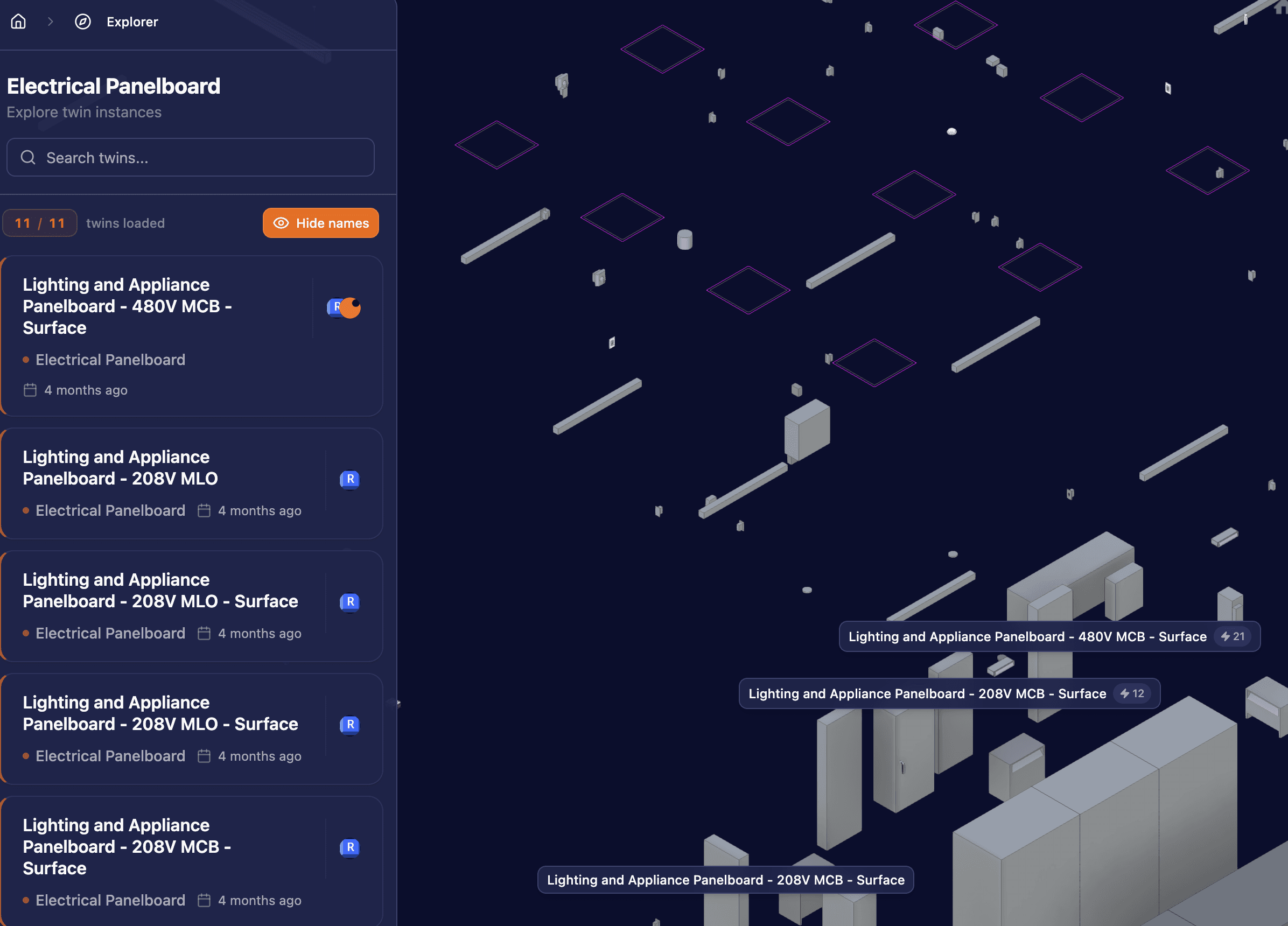
Electrical Panelboard Circuit Count Badges
Circuit count badges now appear on electrical panelboard viewables in the Autodesk viewer.
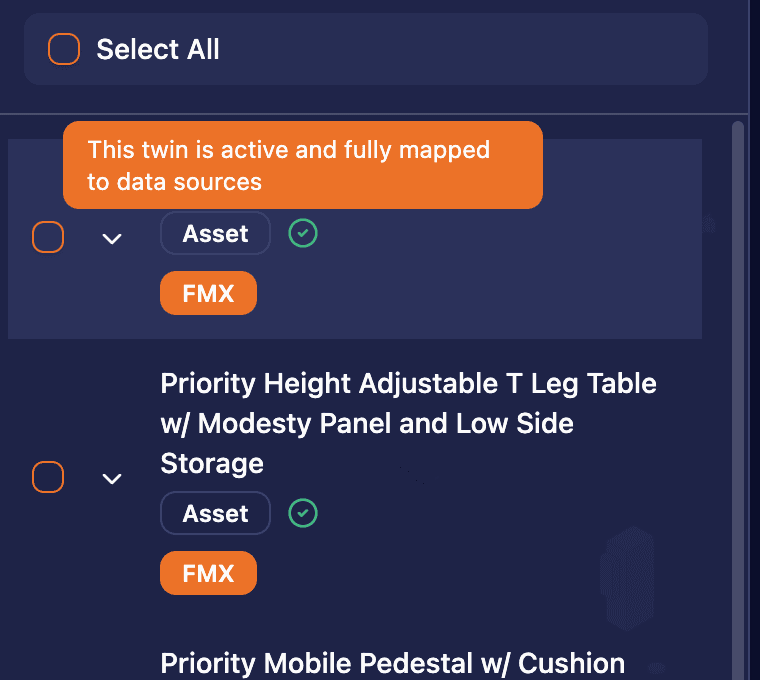
Twin Status in Manage Twins
Each twin on the Manage Twins page now displays its status.
3.6Consolidated Model Viewer, Twin Document Page & Librarian Sub-AgentJan 20, 2026
Jan 20, 2026
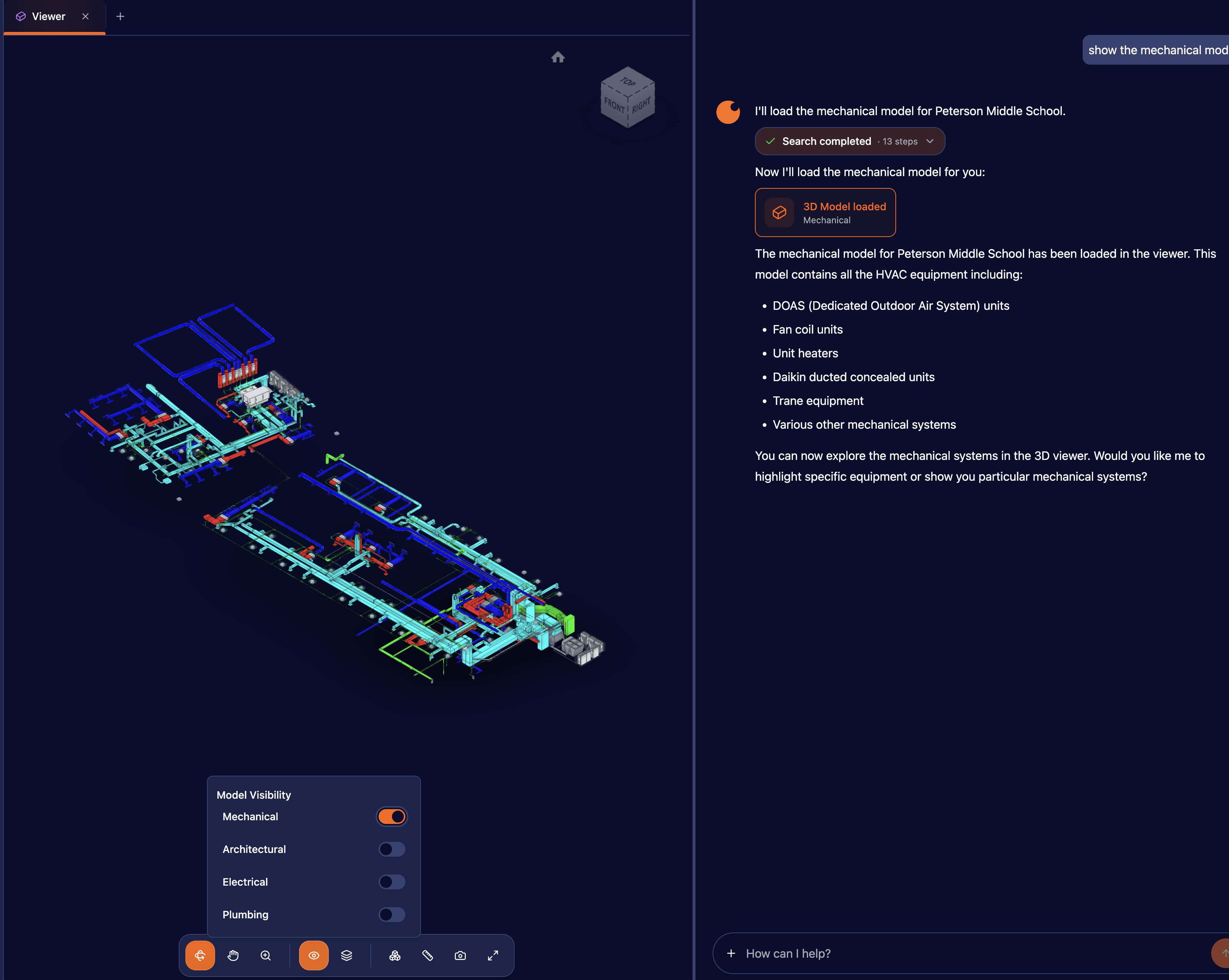
Consolidated 3D Model Viewer
Combined multiple model viewer tabs into a single unified viewer with toolbar controls.
Supports public thread sharing and model highlighting from chat.
Librarian Sub-Agent
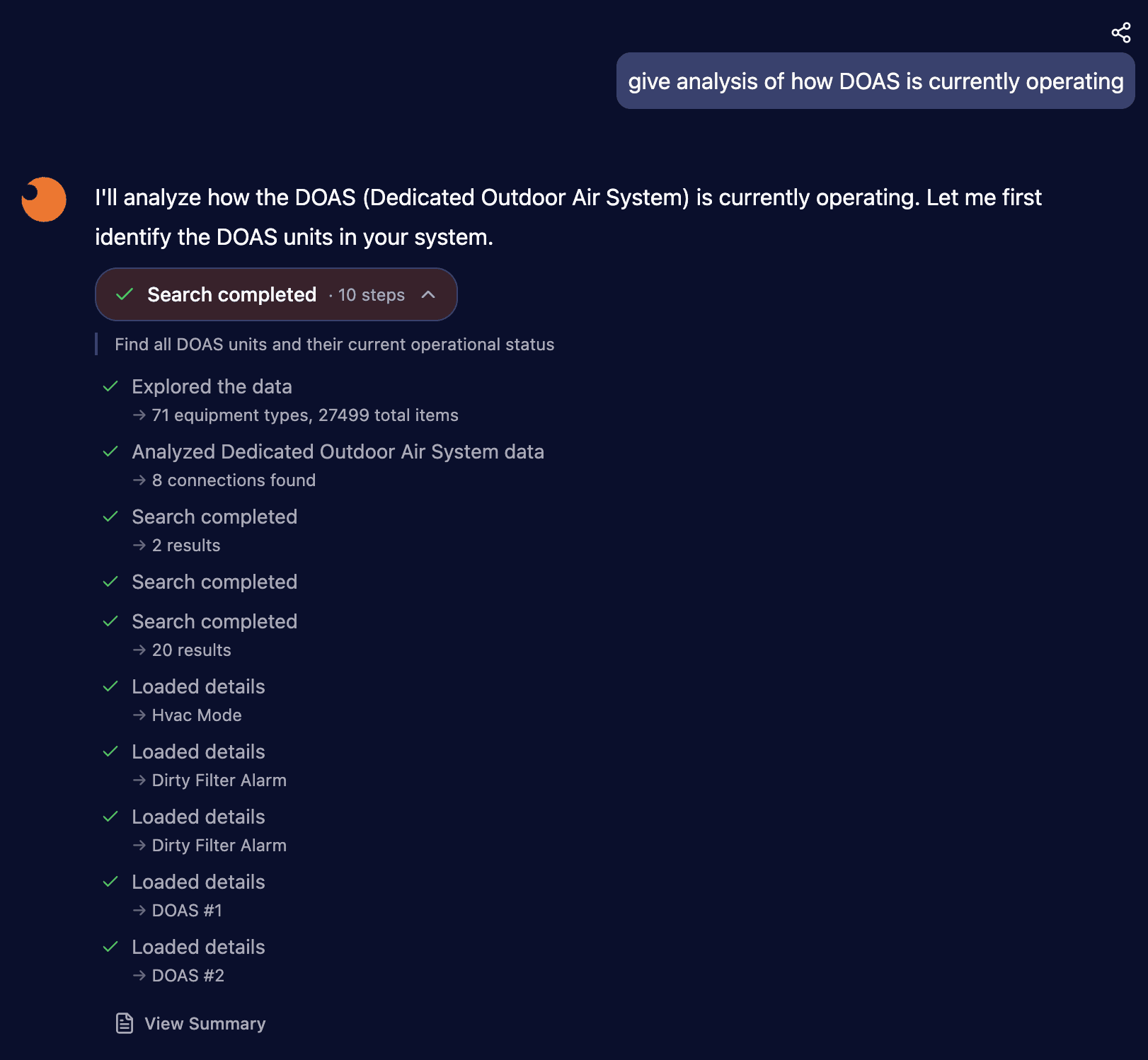
Refactored the librarian tool from a single call to a multi-step sub-agent with animated progress indicators.
Provides more reliable query generation and comprehensive answers from multiple data sources.
This resolves the "Error not found" that kept appearing. Results may take a bit longer but should be more accurate.
Twin Document Page
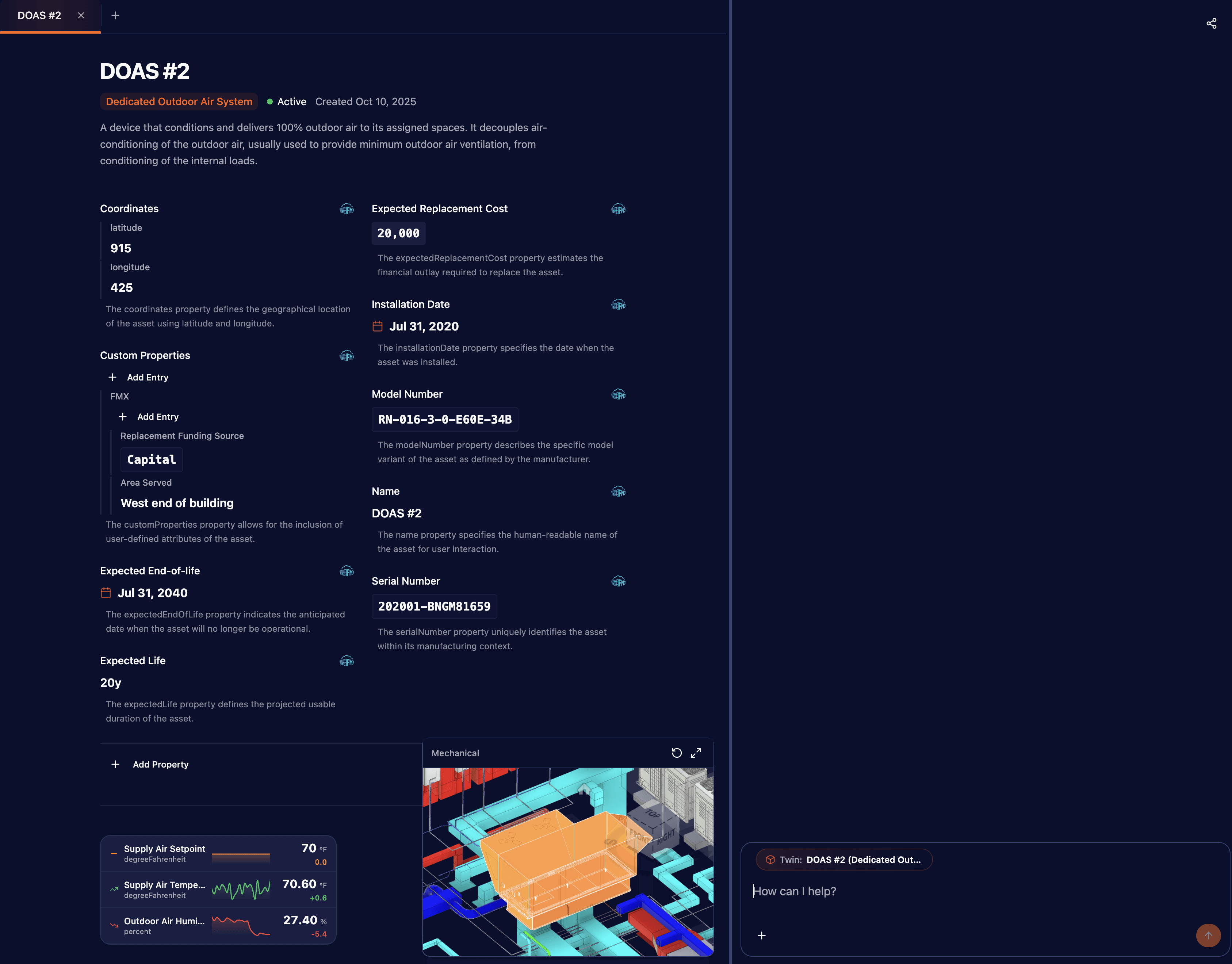
Clicking a twin from AI search results now opens a detailed twin view in a tabbed side panel.
View and edit properties, relationships, files, telemetry, and activity without leaving the chat.
This consolidates the AI chat and the twin details together.
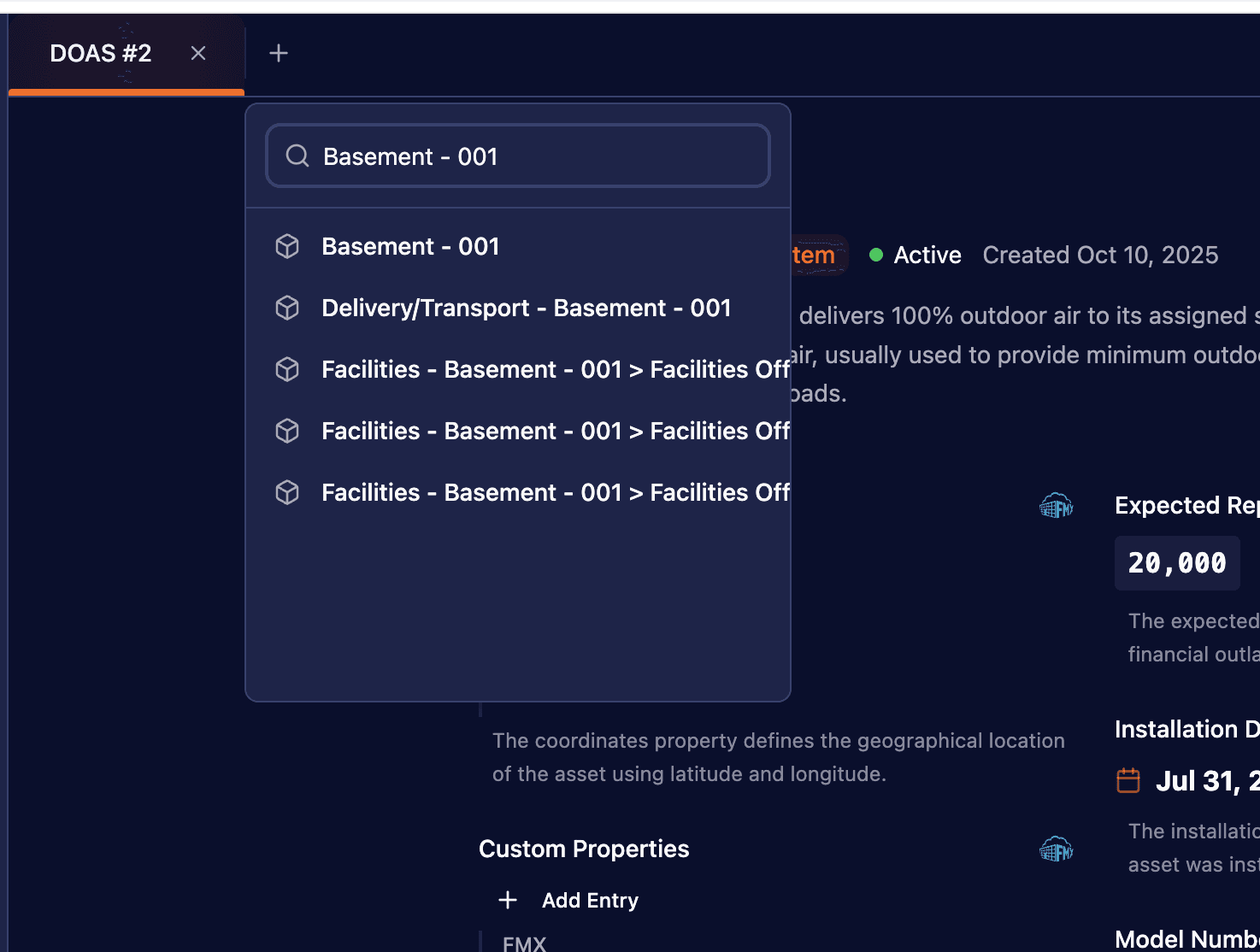
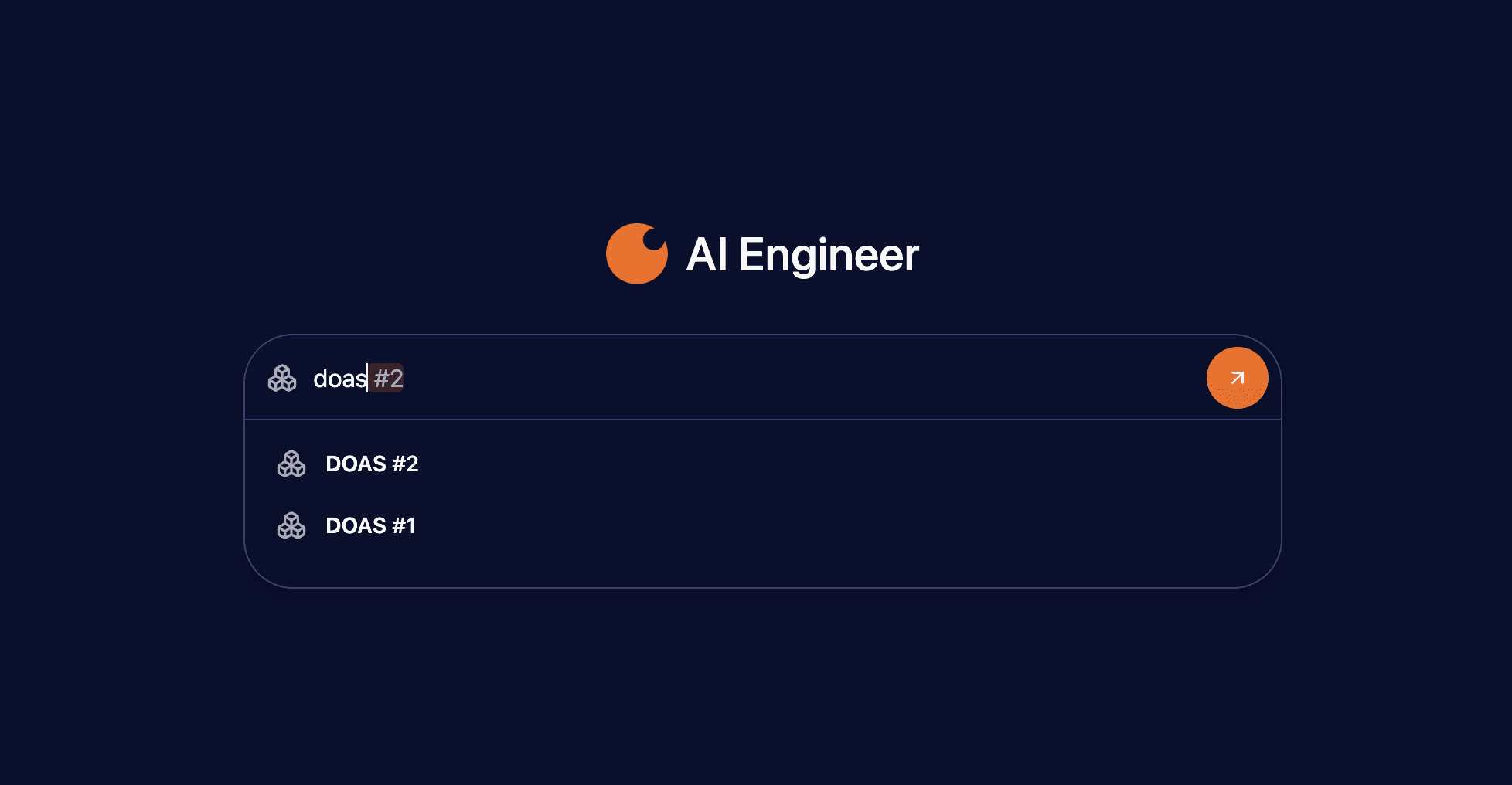
User flow: Search for an asset in the AI engineer input (e.g., "DOAS 2"), select the search suggestion, and see the tag open so you can begin chatting with that asset.
Twin Viewables
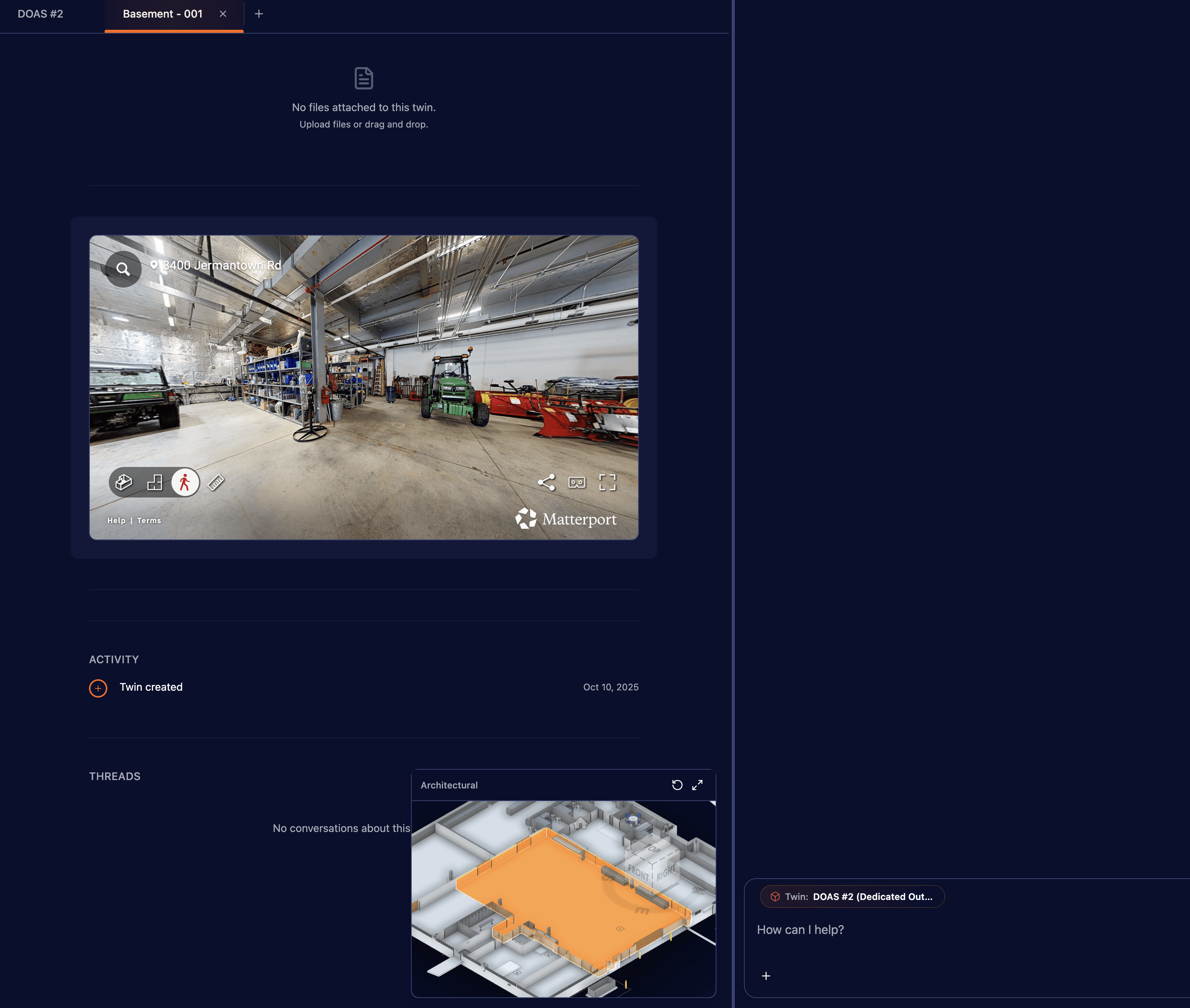
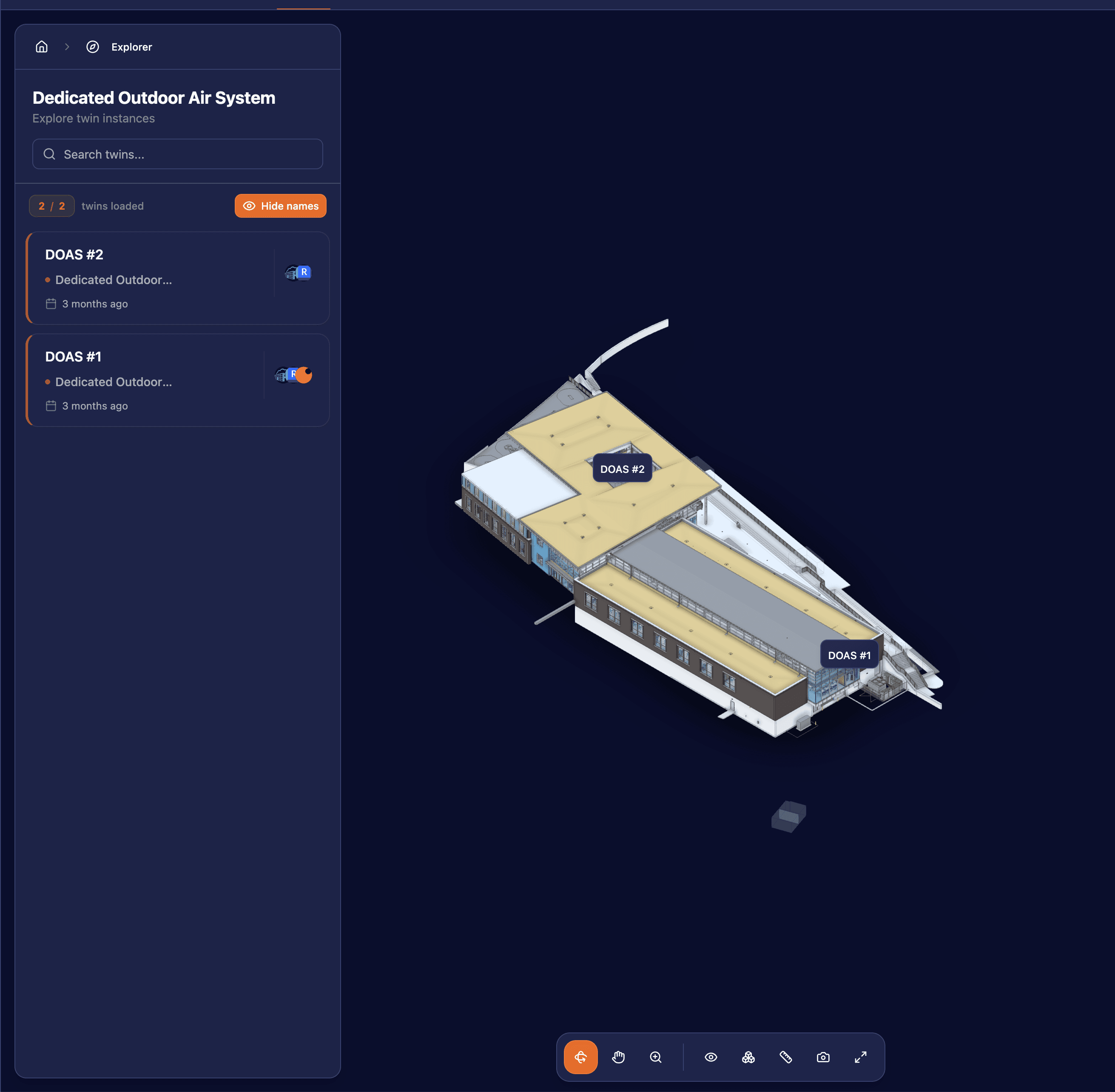
You can now see twin name viewables when navigating through any explorer interface type.
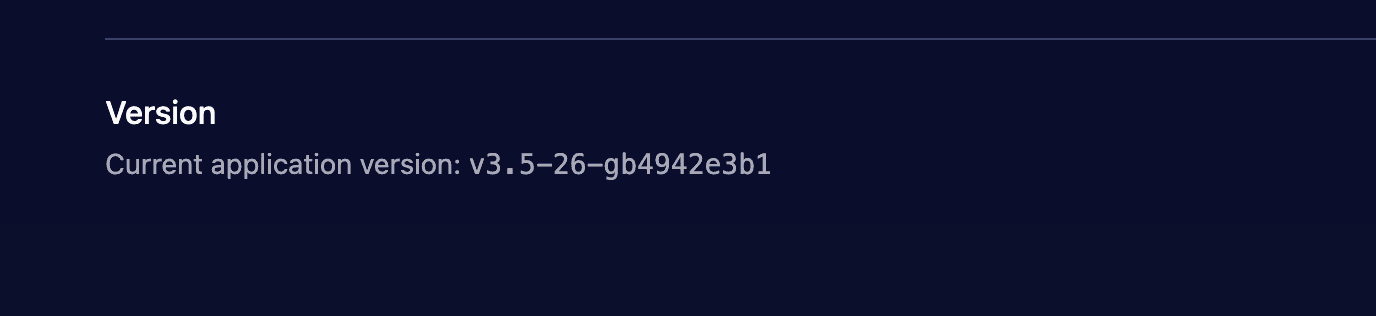
App Version Display
Version number is now shown in the Settings page so you can easily see which version you're running.
3.5Global Search, Unified Twins Management & Matterport ViewerJan 7, 2026
Jan 7, 2026
Global Search
Search directly in the AI chat bar for instant file and asset navigation.
Instead of manually traversing the explorer tree, search by name to jump straight to any asset.
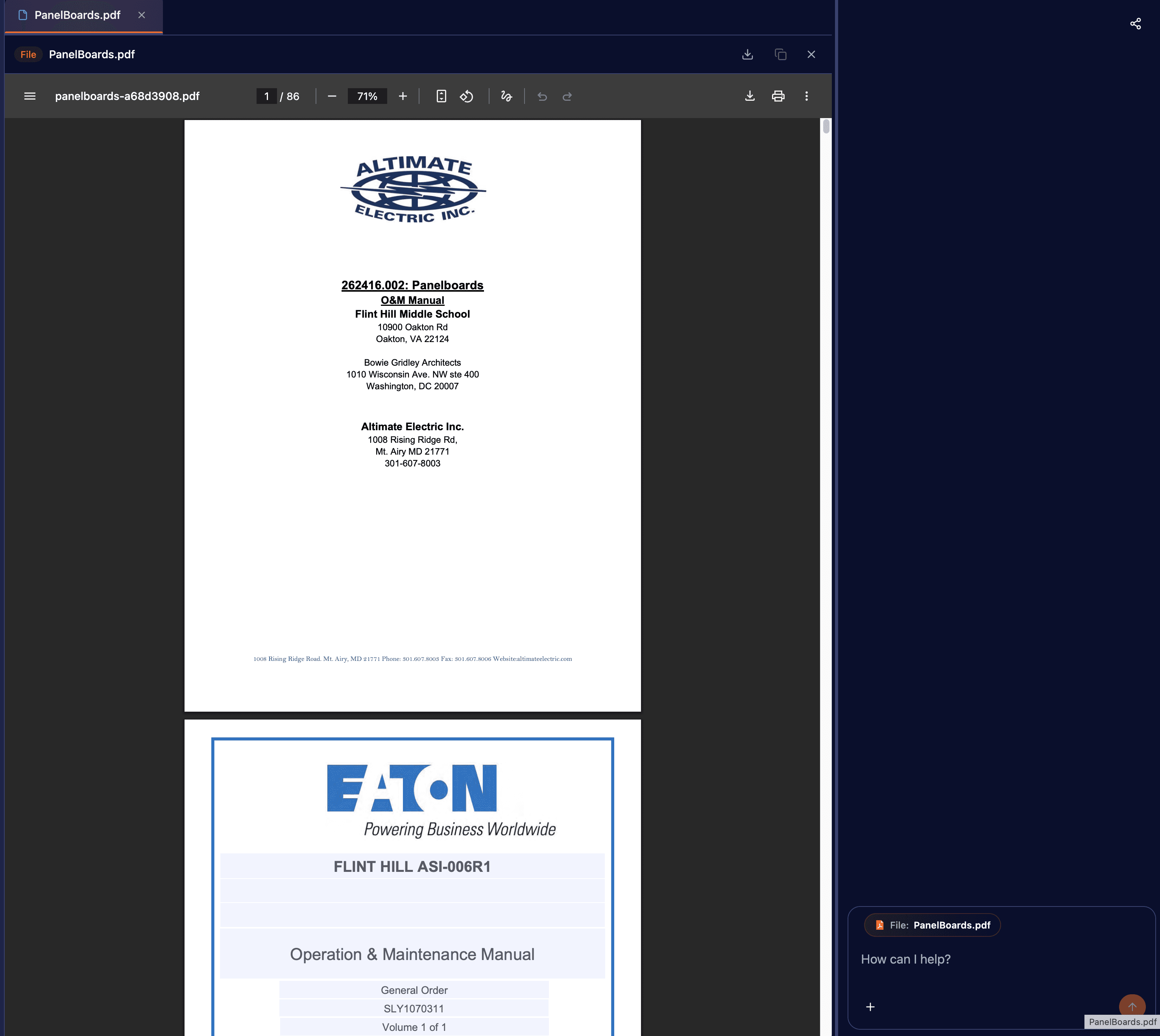
Selecting a file opens it with the AI chat sidebar ready so you can begin chatting with the file.
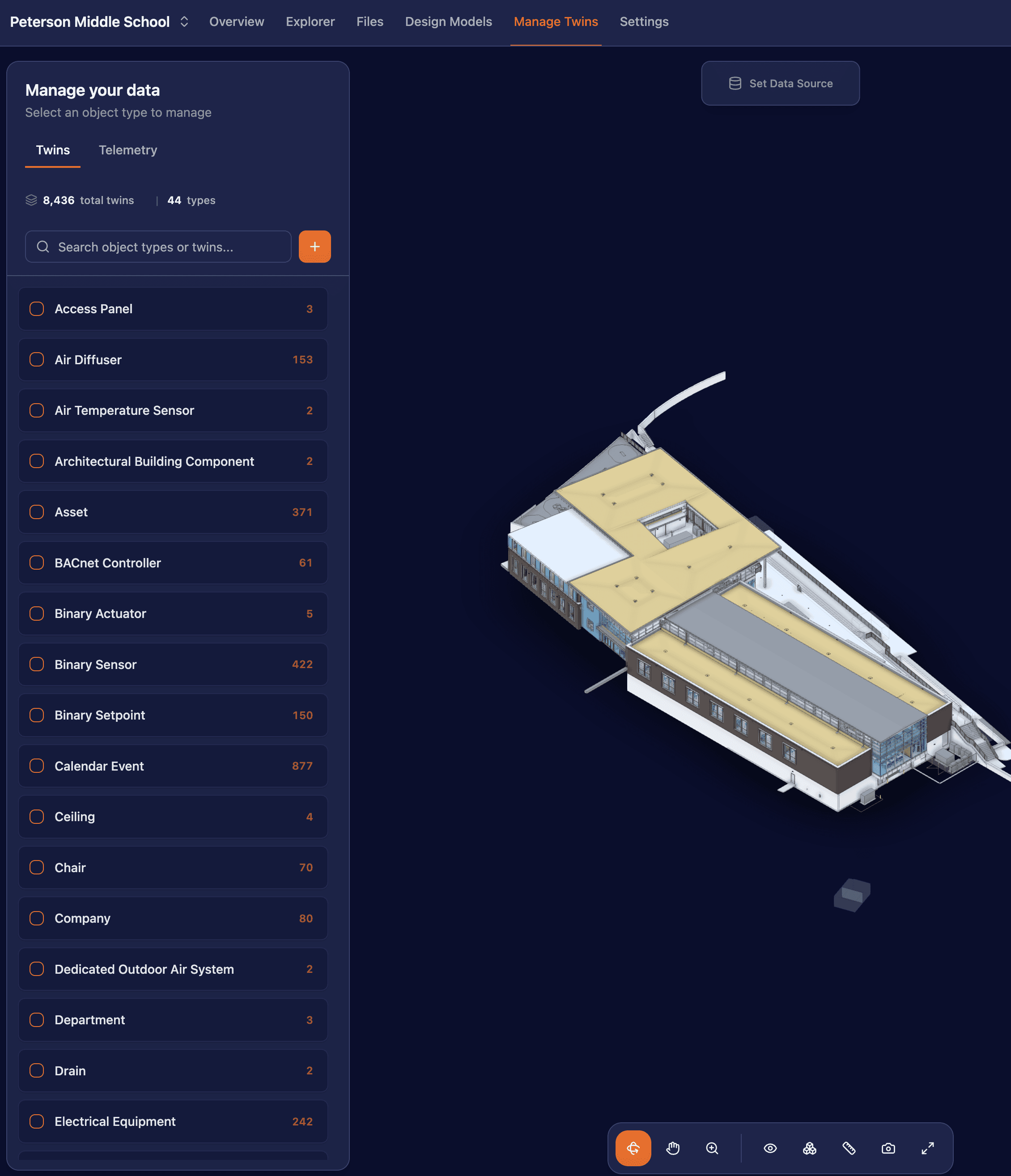
Unified Twins Management Interface
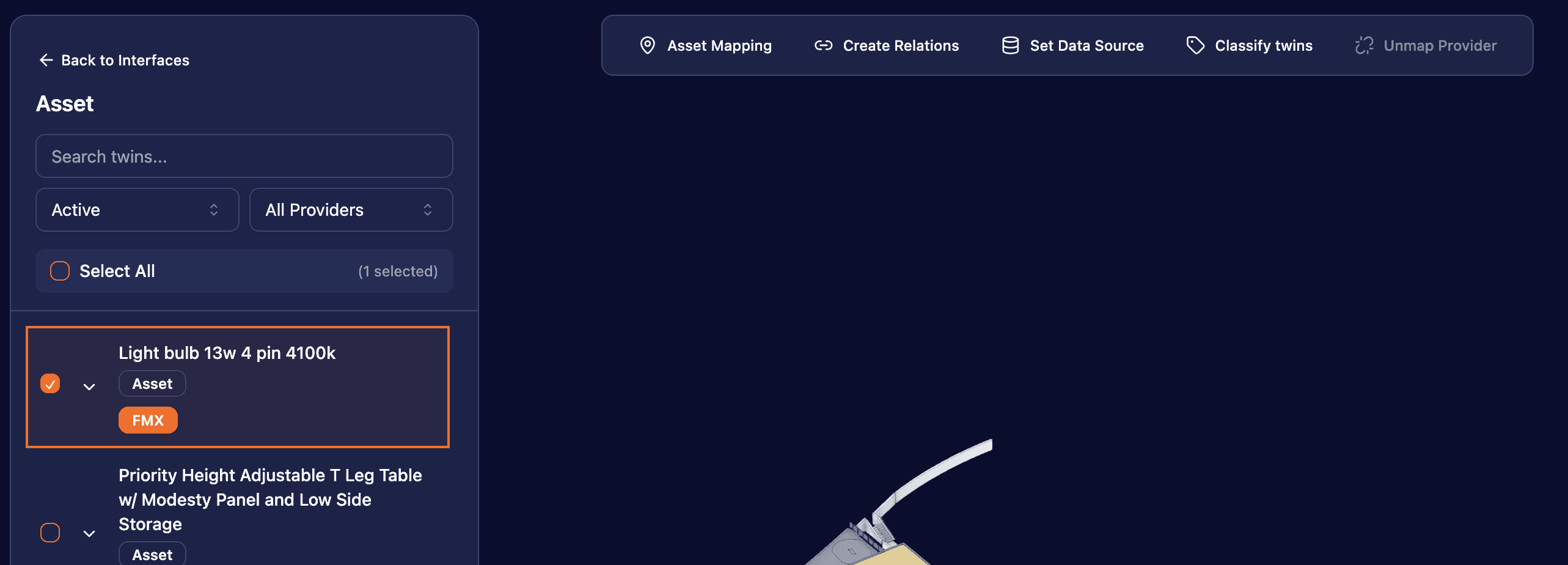
Redesigned twins management with a streamlined three-panel layout: left tabs (twins/telemetries), center action bar, and right details panel.
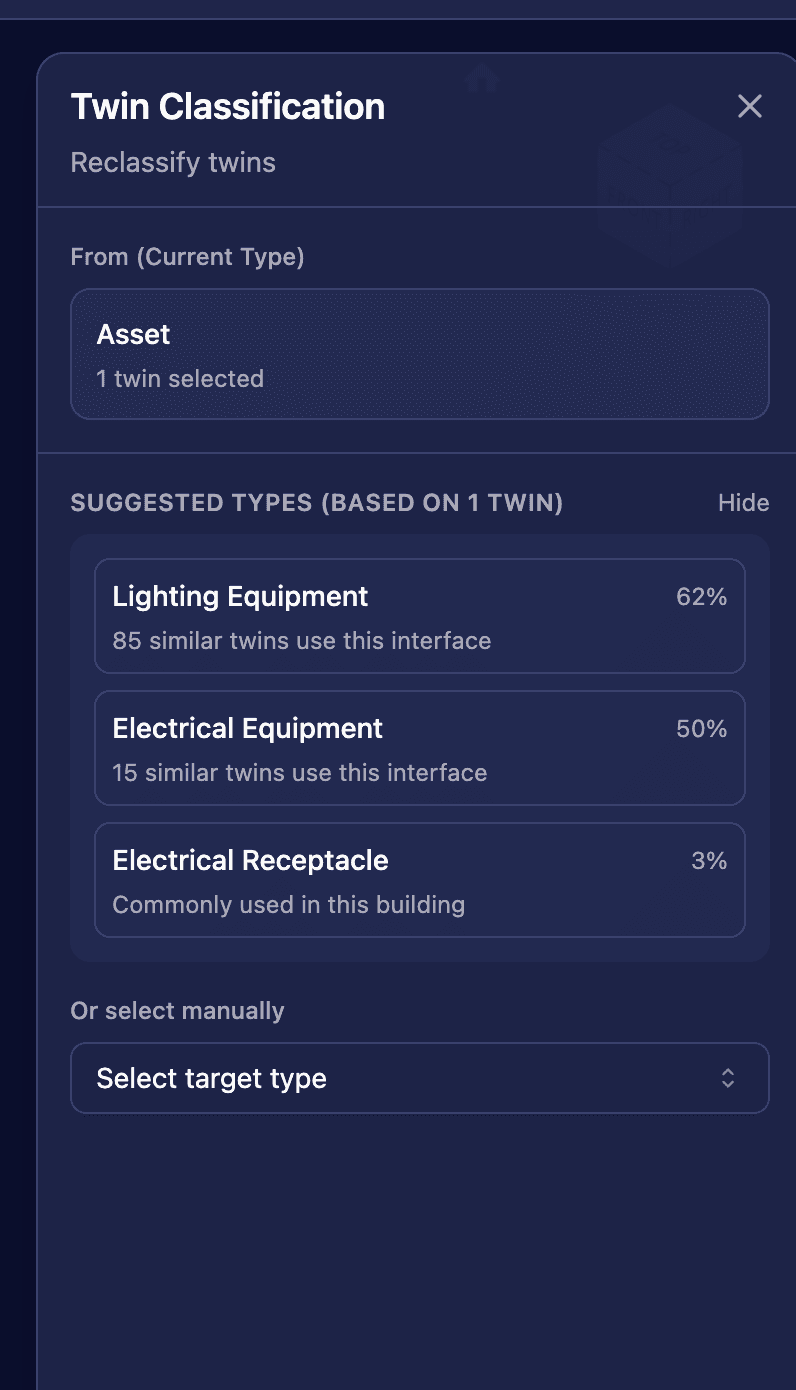
Consolidates previously scattered functionality into one focused interface with bulk operations and intelligent classification suggestions.
Matterport Viewer
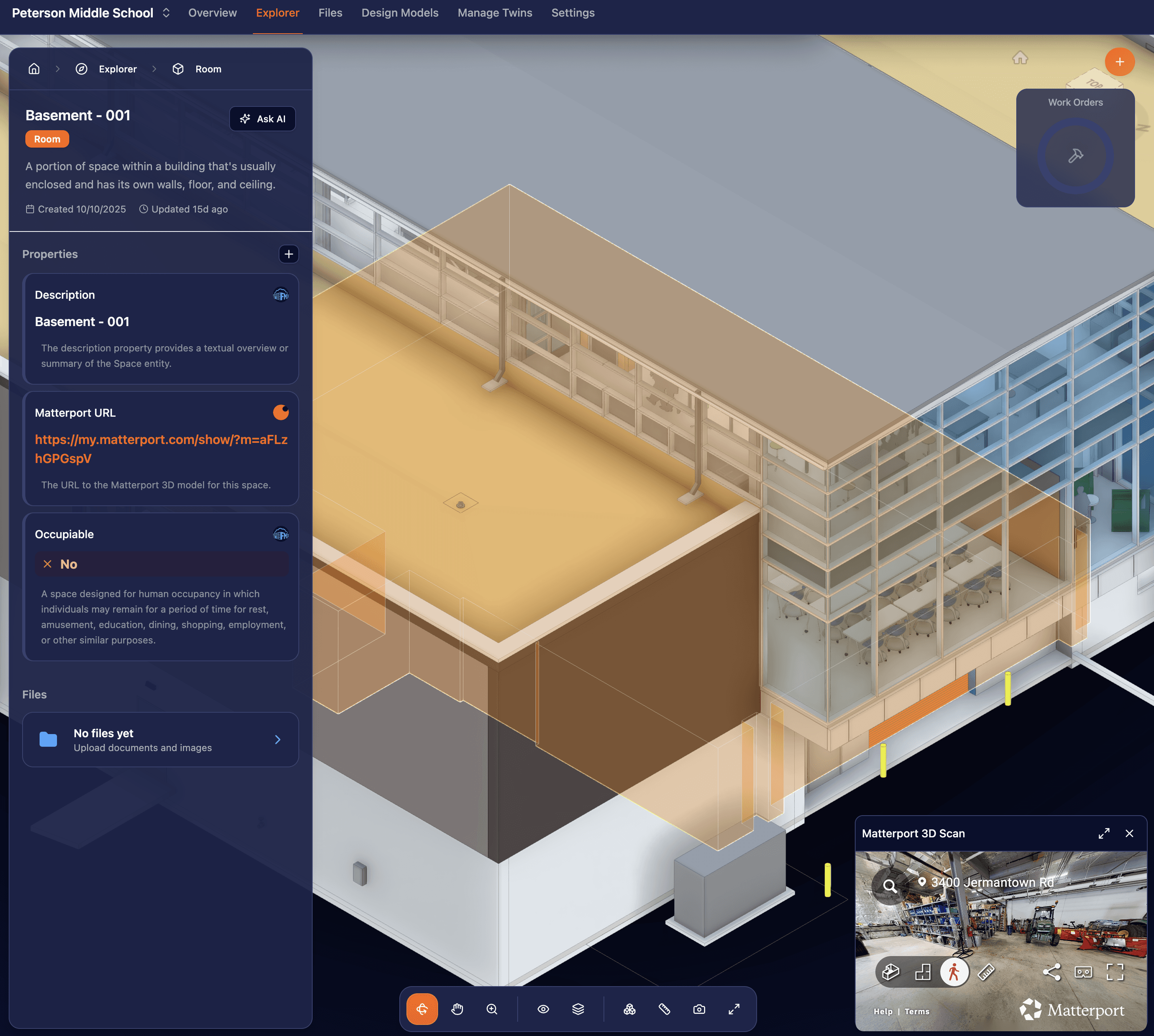
Embedded Matterport viewer appears after clicking a Matterport URL property on a space.
Provides immersive 3D context alongside the digital twin interface.
Room Viewables
Room names now display as spatial clusters directly on the 3D model when browsing the Room category.
This enables visual navigation without memorizing exact room names.
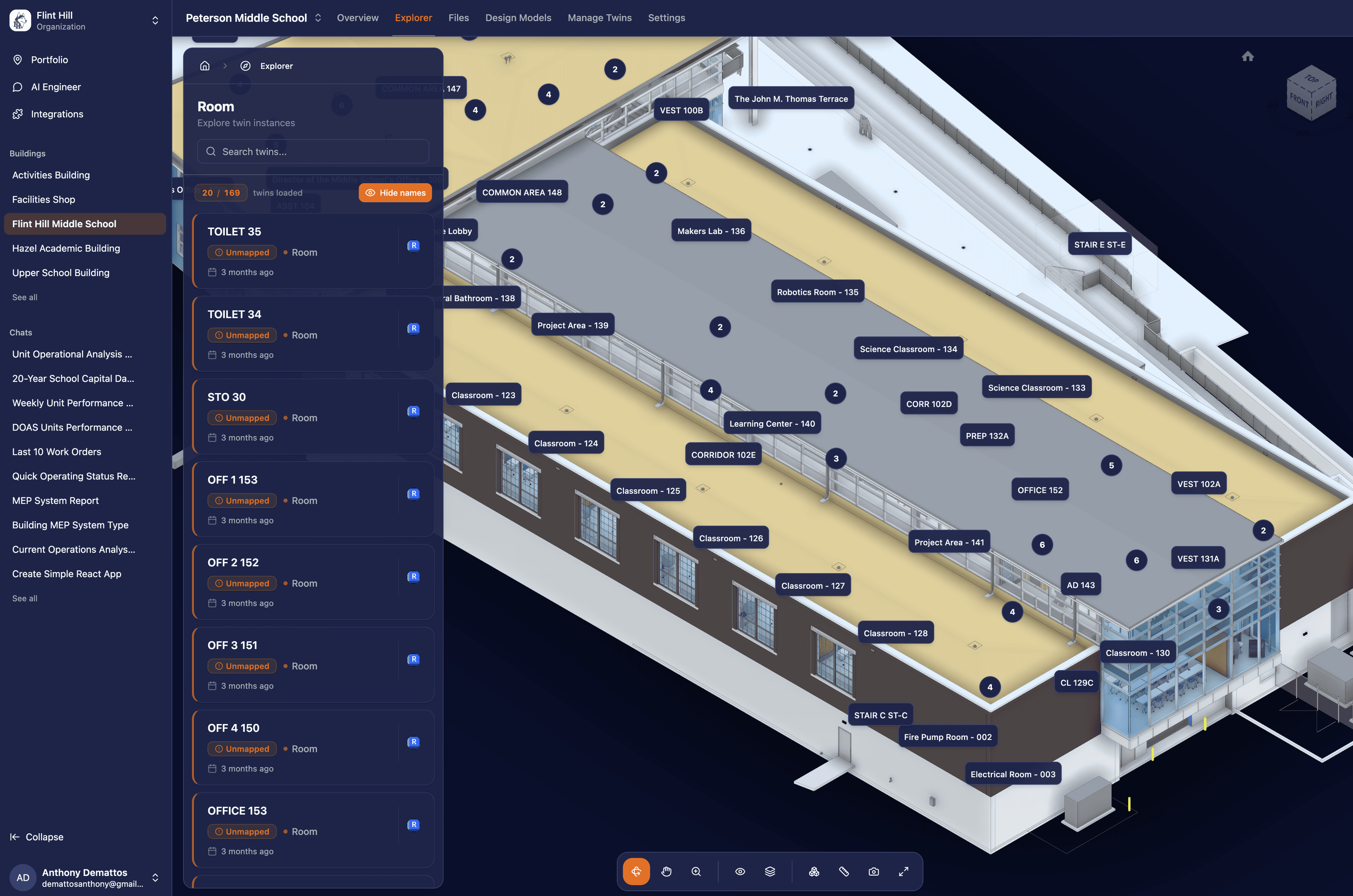
Interface Classification Tree
New hierarchical interface tree navigation system for twin classification, replacing the paginated list.
Includes automatic telemetry remapping when classifying twins to new interfaces.
3.4AI Feedback, Improved Mini Apps & Syyclops Query LanguageDec 10, 2025
Dec 10, 2025
AI Engineer Message Feedback
You can now provide feedback on AI-generated chat messages using thumbs up and down buttons, followed by optional text input.
This helps us continuously improve the AI Engineer's responses.
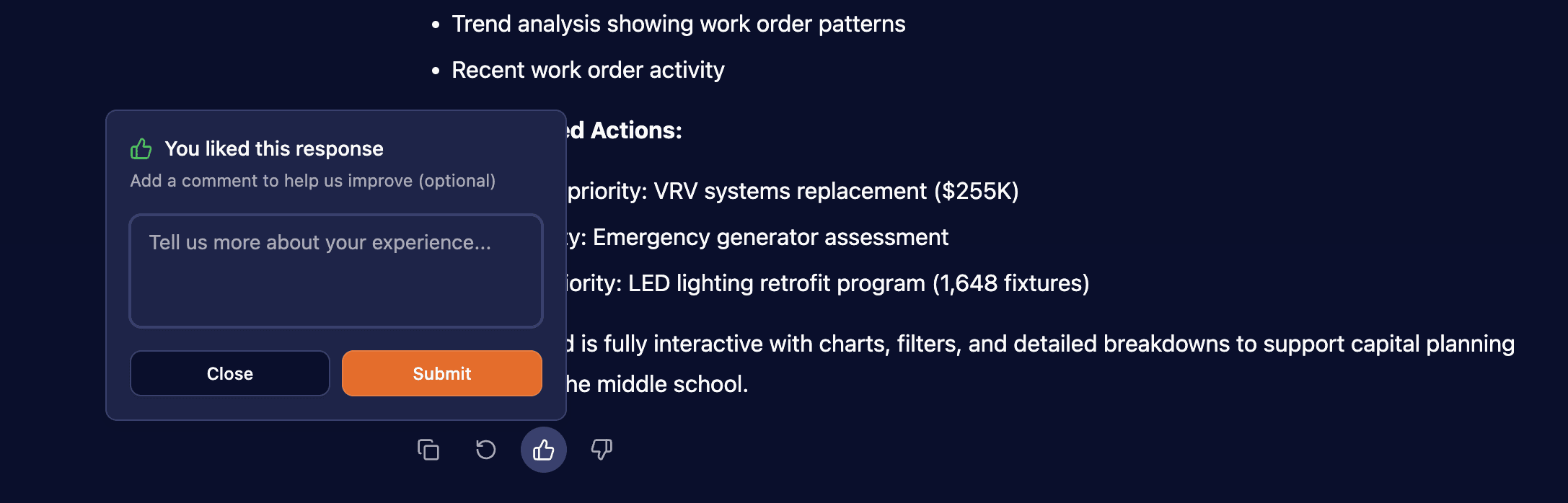
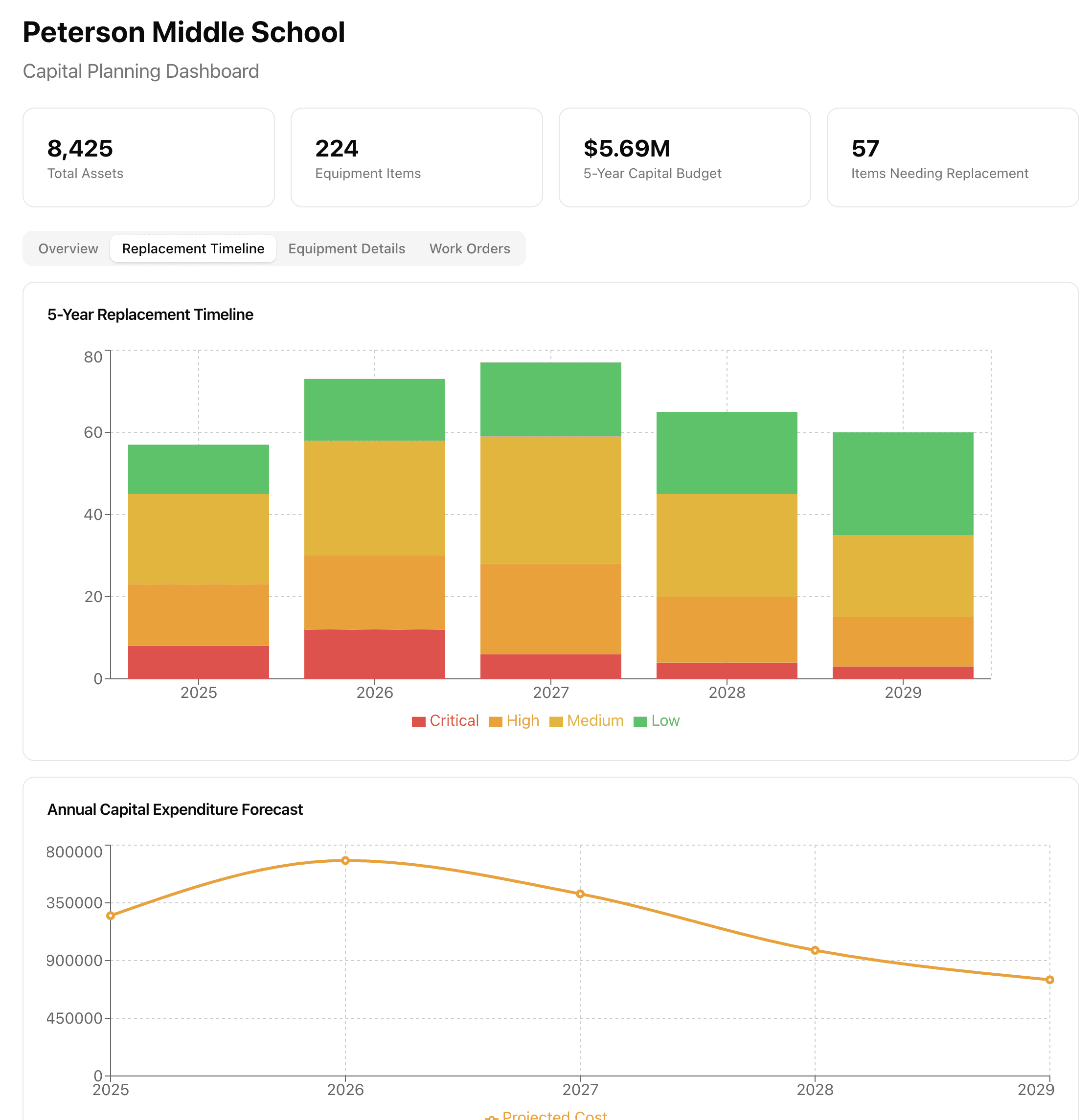
Improved AI Mini App Generation
The AI Engineer can now generate full React components instead of plain HTML.
These mini apps can include tabs, buttons, layout, interactivity, and use our shared theme. Charts and visualizations are cleaner and more consistent with the app design.
This moves AI-generated artifacts from static pages to real interactive micro-apps that can be embedded anywhere.
Matterport URL Property for Spaces
Spaces now support a dedicated Matterport URL field to create a clearer link between onsite reality and the digital twin.
This is useful for navigation, validation, and field coordination.

Syyclops Query Language
A native query language built specifically for the Syyclops digital twin graph.
This gives the AI Engineer much more precise control when retrieving graph context, resulting in faster queries and cleaner reasoning.
3.3Electrical Panels, Building Context in AI Chat & Member InvitesNov 25, 2025
Nov 25, 2025
Electrical Panelboard Page
New dedicated twin page for electrical panelboards with specialized views and controls for managing electrical panel data.
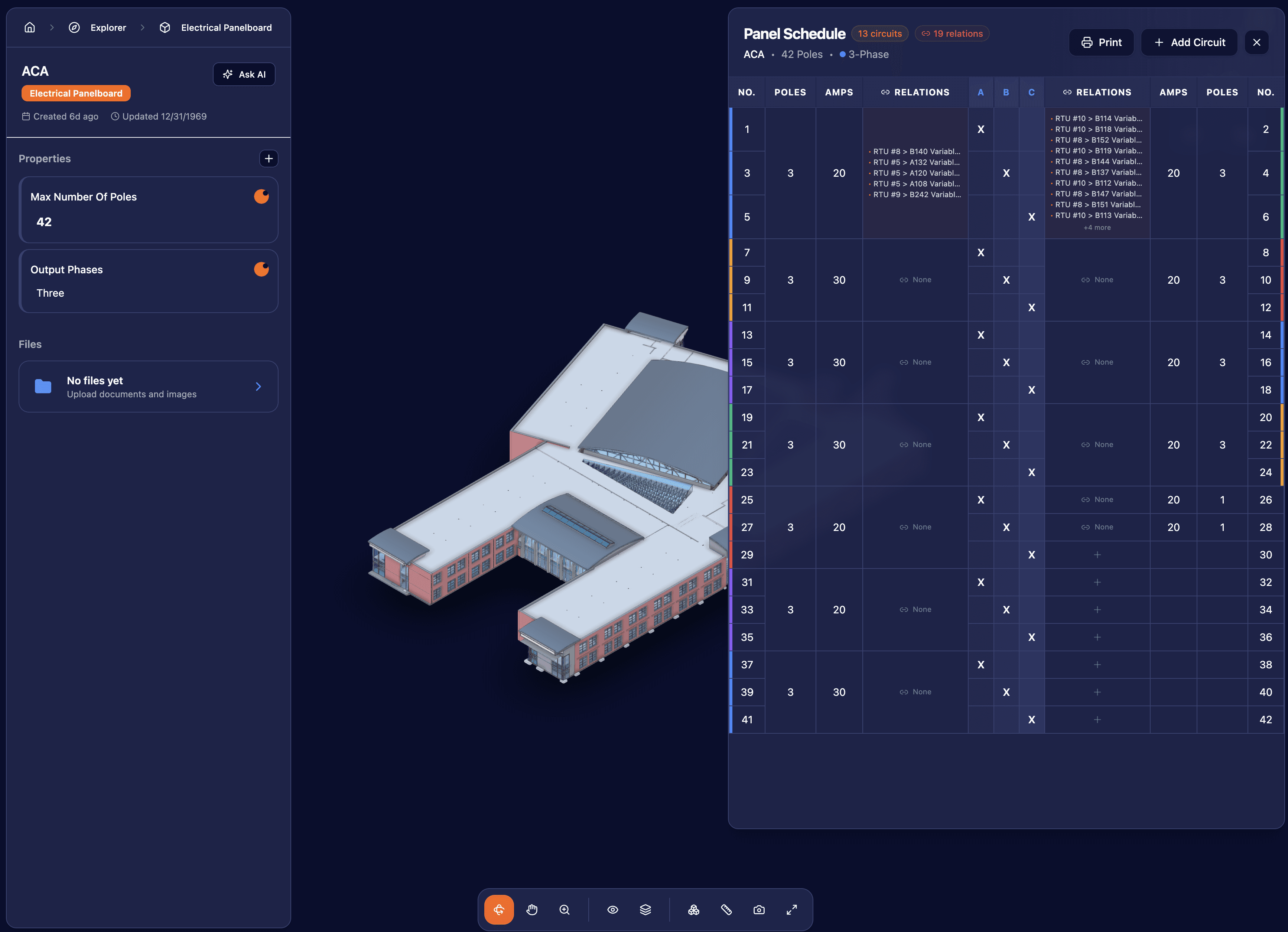
Building Context Selector in AI Chat
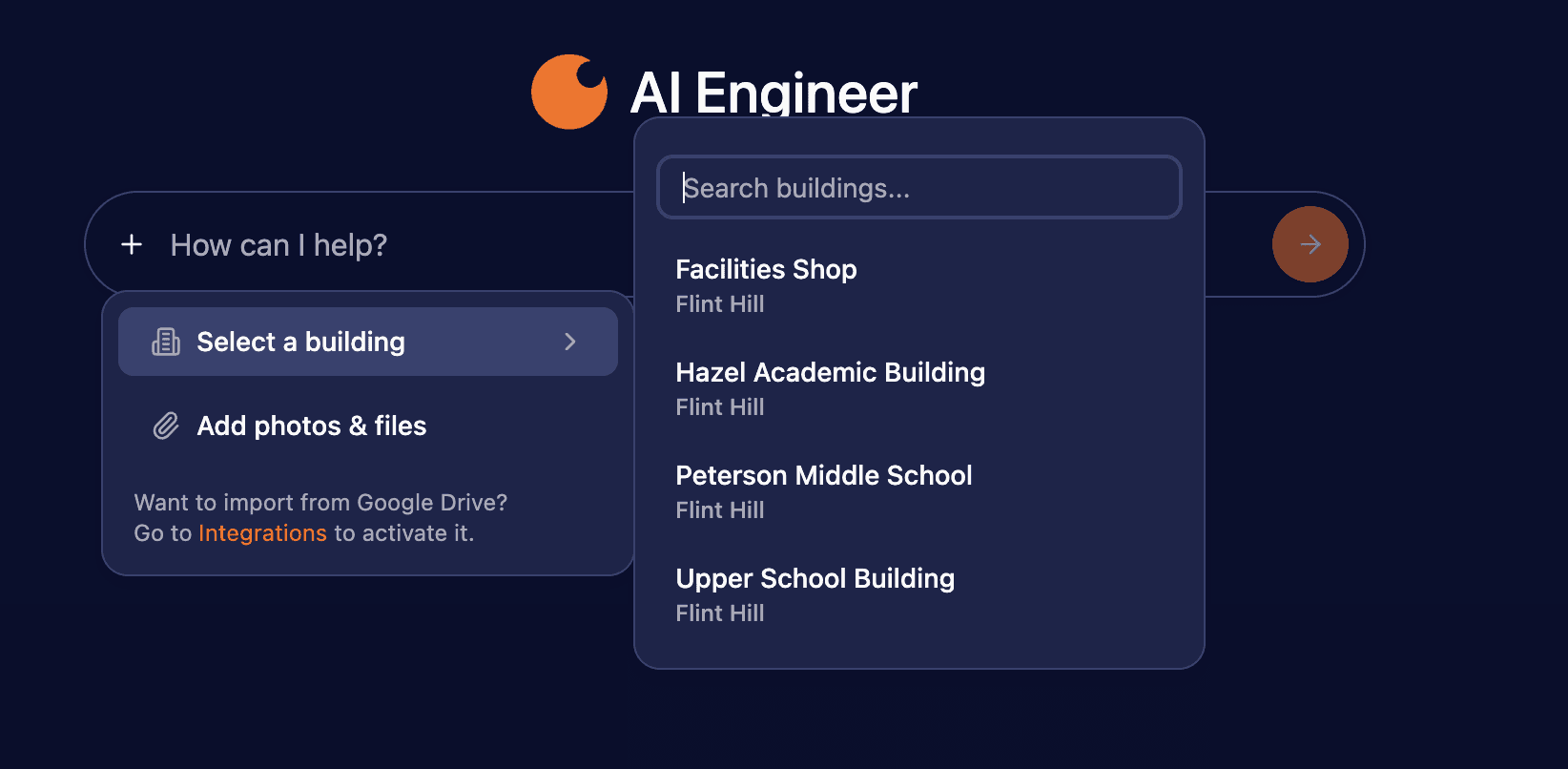
In the AI engineer chat you can now select a specific building that you want to chat with.
Click the "+" button to add a building to your conversation context.
External URL Property for Spaces
You can now add a custom property on spaces to import links from outside the platform.
For example, add a Matterport link to a 3D space scan. The platform treats the value as a hyperlink and opens it in a new tab.
Invite Members with Specific Building Access
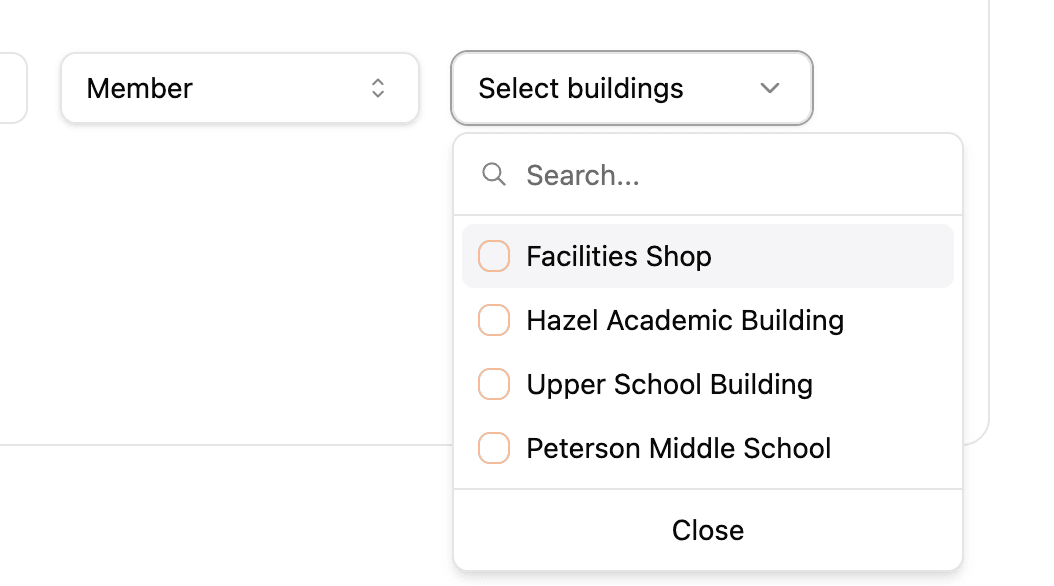
When adding a user with the role of "member", you can now specify which buildings they have access to directly in the invite.
Twins Sorting by Property
You can now sort twins by any property column in the twins list view, making it easier to organize and find specific twins.
Simplified AI Model Selection
Removed the AI model selector from the chat interface. The platform now automatically uses the optimal model for each request.
3.2Unit Selection, AI Engineer Improvements & Twin Classification UpdatesNov 11, 2025
Nov 11, 2025
Unit Selection When Adding Properties
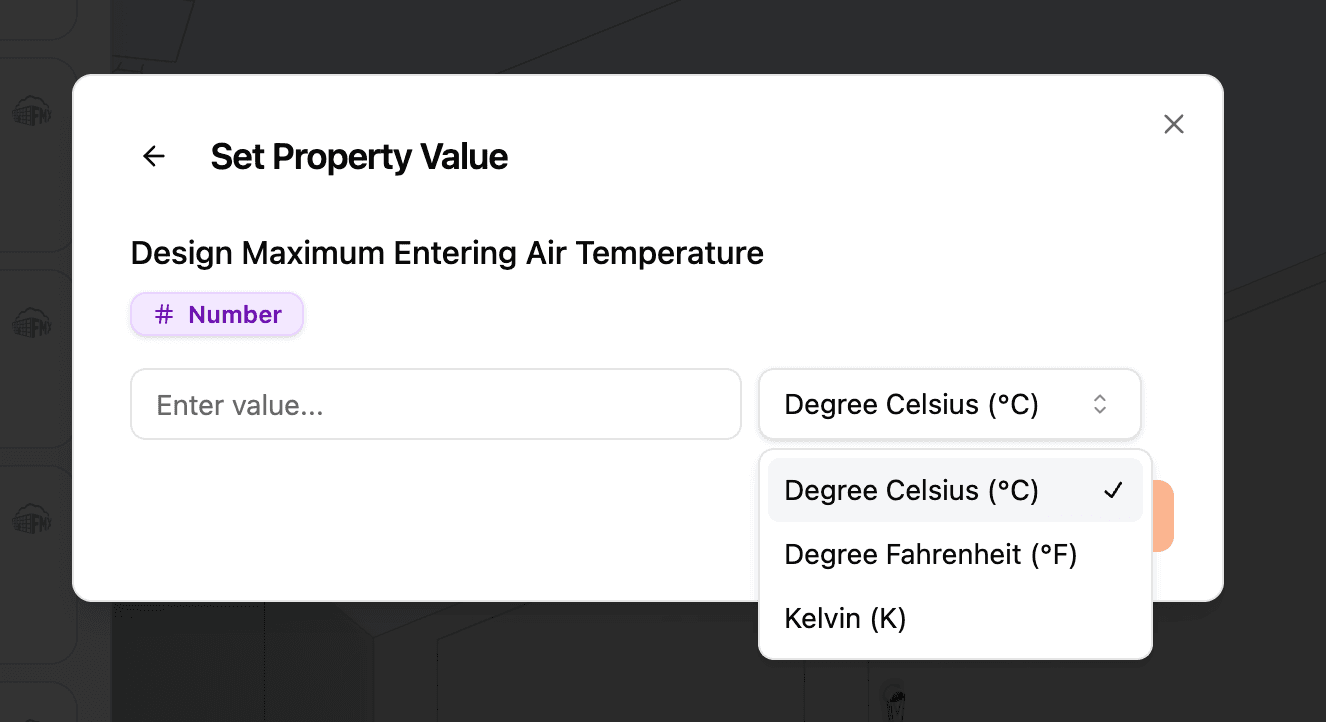
When adding a property to a twin, if that property has an associated unit (for example: °F, PSI, kWh), you'll now see a unit selector.
This ensures properties are consistently defined across the system.
AI Engineer Output Reduction
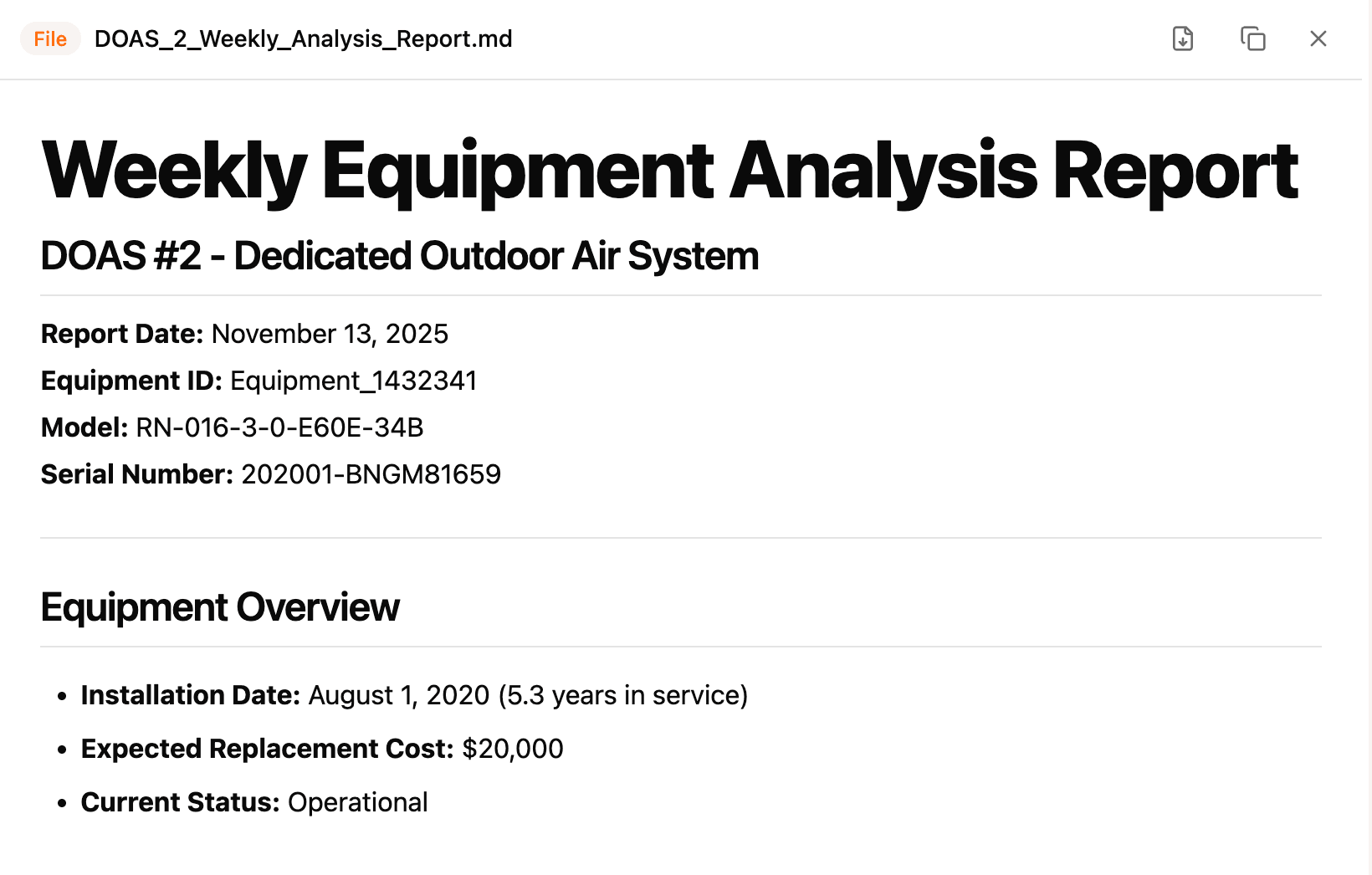
Files generated by the AI engineer are now optimized to be shorter and more concise.
Twin Classification Updates
The twin classification panel is now a side card so you can keep the 3D model in view while classifying.
Note: Clicking an item in the side card will highlight it in the model in a future update.
Share AI Engineer Threads
You can now share AI engineer conversation threads via link.
Example: https://app.syyclops.com/share/thread/019a7dc1-6de7-7302-8322-203983561f10
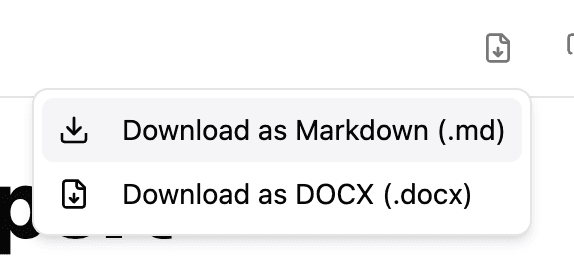
Export AI Engineer Files to DOCX
When the AI engineer generates a document, you can now download it in DOCX format (.docx).
3.1Manual Property Creation, Work Order Page, Room View & File ManagementOct 30, 2025
Oct 30, 2025
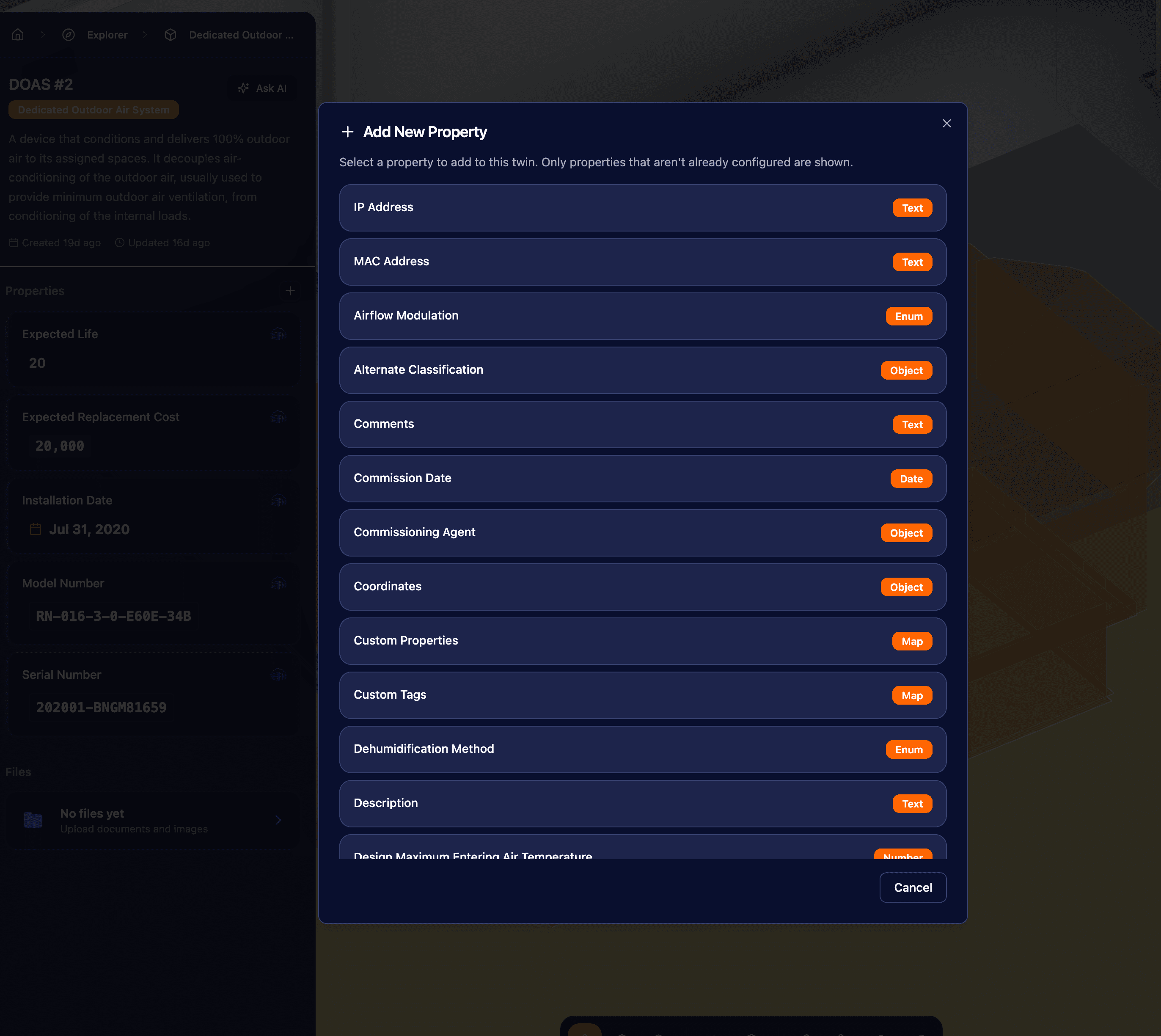
Manually Add Properties to Twins
You can now create and edit properties on twins directly inside Syyclops. Until now, properties were primarily sourced from external systems or BIM imports. With this update, you can capture new information in the platform itself.
This keeps Syyclops as the source of truth for building data as things change over time.
How it works:
1. Open a building and navigate to a specific twin
2. Click the "+ Add Property" button
3. You'll see available properties based on the twin's ontology/interface
4. Enter values and save
For example, when working with an Air Handling Unit, only AHU-related properties will be available, keeping data structured and consistent.
Dedicated Work Order Page
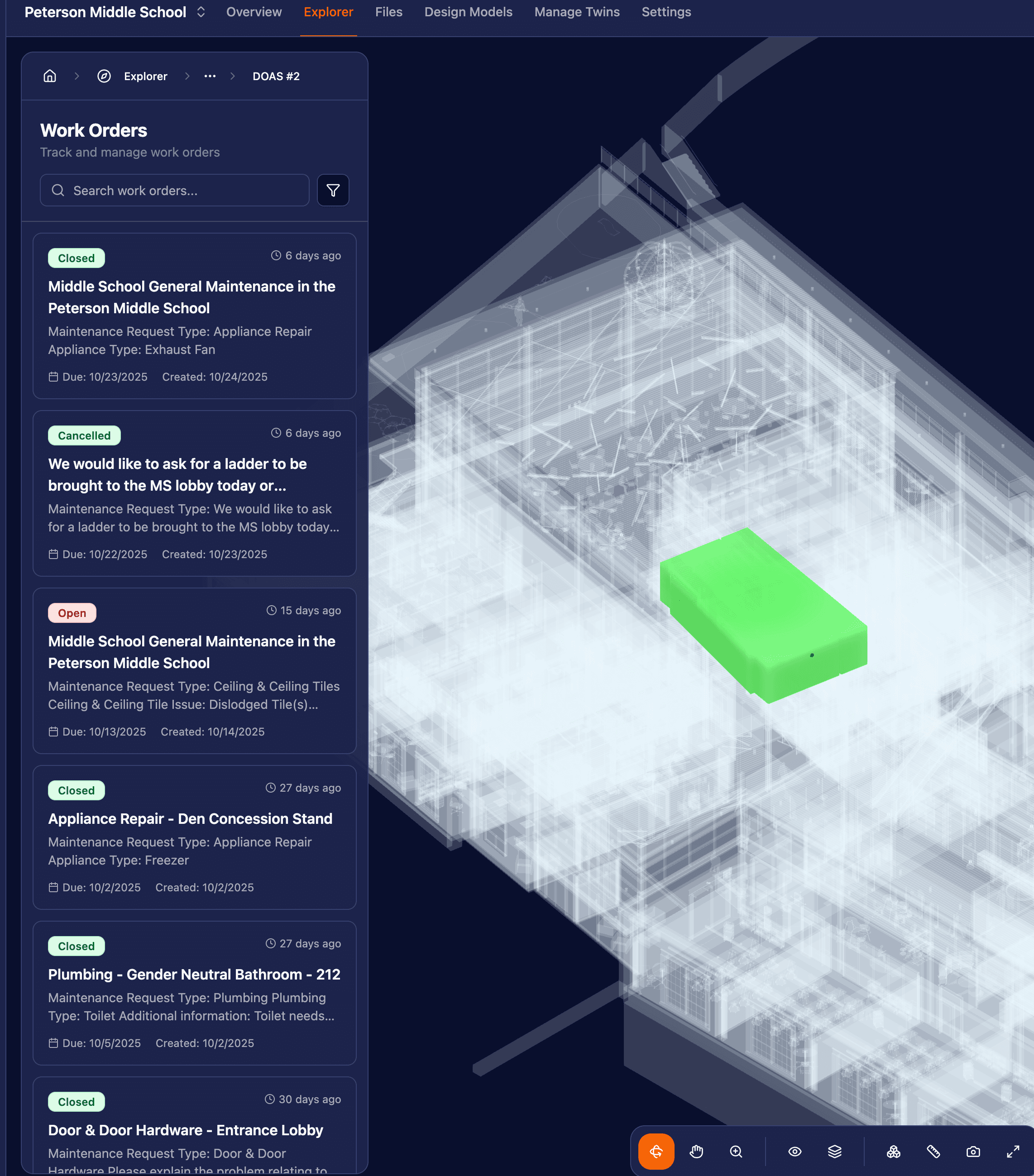
Work orders now have a full dedicated view that makes them easier to review, prioritize, and act on.
Key improvements:
• Organized list view with better sorting and filtering
• Ability to see affected spaces and assets directly in the 3D building model
• Heatmap overlays to highlight clusters or high-activity areas
Where to find it:
• From the dashboard: click the Work Orders widget
• Or via the Explorer → Work Orders
Updated Room View (Auto Floor Cut)
Room pages now automatically cut the surrounding floor in 3D, allowing you to clearly see inside the space without extra navigation steps.
This makes room-level investigation much simpler, especially when reviewing assets or work orders associated with specific rooms.
How to try it:
• Use the Explorer to navigate to a Room Twin
Delete Files
File management now supports deleting uploaded files, giving you more control over stored documents and attachments.
Look for the Delete option in the file list menu.
PDF Snapshots
Complete snapshots of this changelog, including every archived release, as downloadable PDFs.